Visualização normal

Hoje — 8 de Setembro de 2026Cybersecurity News
  • ✇Cybersecurity News
  • Windows 11 Battery Widget: New Connected Device Status Do Son
    Discover the upcoming Windows 11 battery widget that elegantly displays peripheral power levels and connection statuses directly on your lock screen. Related Posts: Microsoft Project Zenith: A Ready-to-Code Windows 11 Experience for Developer PCs Microsoft to Require Windows Driver SBOM and VEX Statements from March 2027 Windows 11 Memory Integrity Goes On by Default in October The post Windows 11 Battery Widget: New Connected Device Status appeared first on Daily CyberSecurity.
     
Ontem — 7 de Setembro de 2026Cybersecurity News
  • ✇Cybersecurity News
  • Microsoft Project Zenith: A Ready-to-Code Windows 11 Experience for Developer PCs Do Son
    Microsoft Project Zenith is a ready-to-code Windows 11 experience for 64GB+ developer PCs, but a free open-source config offers much the same. Related Posts: Microsoft to Require Windows Driver SBOM and VEX Statements from March 2027 Windows 11 Memory Integrity Goes On by Default in October Microsoft Hotpatch Requires Unexpected Reboots The post Microsoft Project Zenith: A Ready-to-Code Windows 11 Experience for Developer PCs appeared first on Daily CyberSecurity.
     
Antes de ontemCybersecurity News
  • ✇Cybersecurity News
  • Windows 11 Unified Memory Allocation Do Son
    Discover how upcoming Windows 11 unified memory features will let users allocate RAM between the CPU, GPU, and NPU for optimized gaming and AI performance. Related Posts: Windows 11 Game Crashes Tied to RGB Drivers Windows 11 Mouse Indicator: Find Your Cursor Instantly Windows 11 Gaming Issues Emerge After August Update The post Windows 11 Unified Memory Allocation appeared first on Daily CyberSecurity.
     

Windows 11 Unified Memory Allocation

Por:Do Son
24 de Agosto de 2026, 04:59

Discover how upcoming Windows 11 unified memory features will let users allocate RAM between the CPU, GPU, and NPU for optimized gaming and AI performance.

Related Posts:

The post Windows 11 Unified Memory Allocation appeared first on Daily CyberSecurity.

  • ✇Cybersecurity News
  • GEEKOM Mini PC Driver Downloads Found Bundled With Backdoor Since 2024 Do Son
    GEEKOM's official site served backdoored AMD mini PC drivers since December 2024 via a compromised legacy support page still indexed by Google. Related Posts: Abyssos Modular RAT: Zscaler ThreatLabz Analysis Aeternum Blockchain Botnet Hides C2 Commands in Polygon Smart Contracts DCRat Campaign Uses SVG HTML Smuggling to Deliver DarkCrystal RAT The post GEEKOM Mini PC Driver Downloads Found Bundled With Backdoor Since 2024 appeared first on Daily CyberSecurity.
     

Fake IT Calls on Microsoft Teams Lead to GoGRPC Backdoor Infections

Fake helpdesk callers use Microsoft Teams and Quick Assist to access employee computers, where attackers install new GoGRPC backdoor in suspected ransomware operations

Azure CLI Password Spray Attack Exposes Microsoft 365 MFA Gap

6 de Julho de 2026, 13:48

A password spray campaign targeting Azure CLI sign-ins exposed how narrow Conditional Access policies can leave Microsoft 365 accounts vulnerable even when MFA is enabled.

The post Azure CLI Password Spray Attack Exposes Microsoft 365 MFA Gap appeared first on TechRepublic.

  • ✇Firewall Daily – The Cyber Express
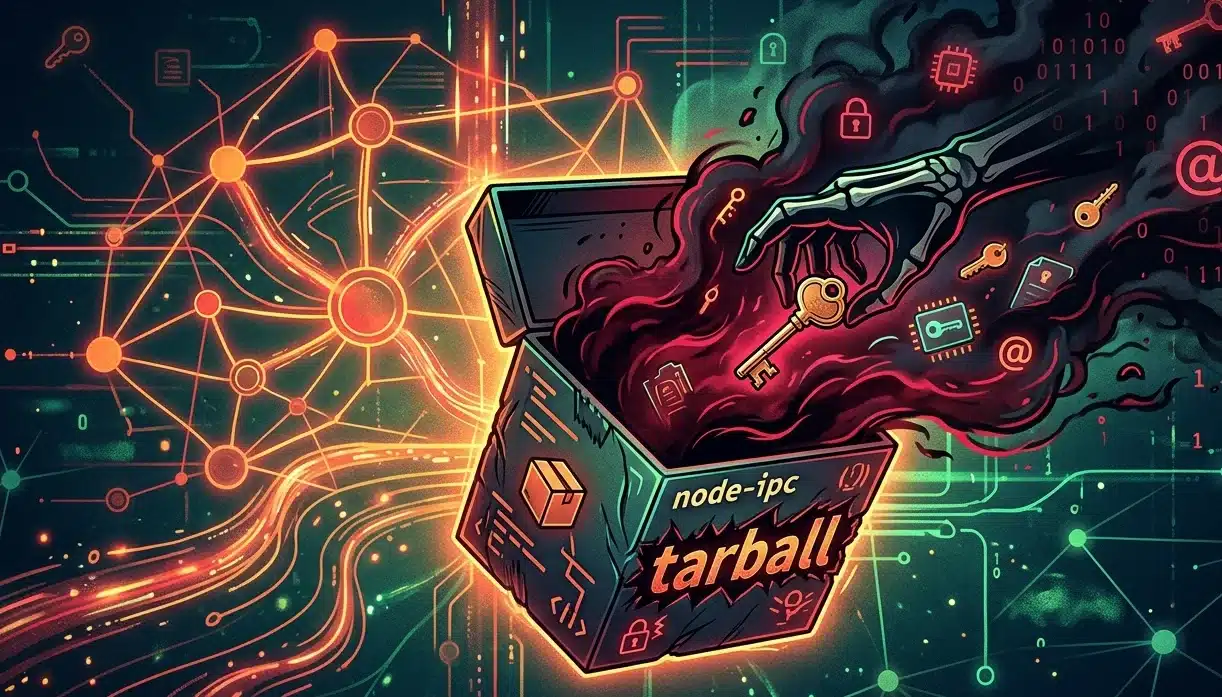
  • Malicious node-ipc npm Packages Trigger New Supply Chain Security Alarm Ashish Khaitan
    A fresh supply chain attack targeting the widely used node-ipc npm package has raised new concerns across the JavaScript ecosystem after researchers uncovered multiple malicious releases containing an obfuscated credential stealer and backdoor functionality. Security analysts confirmed that several recently published package tarballs were infected with malware capable of harvesting sensitive data from developer systems and CI environments.  The compromised versions identified as malicious inc
     

Malicious node-ipc npm Packages Trigger New Supply Chain Security Alarm

node-ipc, npm package

A fresh supply chain attack targeting the widely used node-ipc npm package has raised new concerns across the JavaScript ecosystem after researchers uncovered multiple malicious releases containing an obfuscated credential stealer and backdoor functionality. Security analysts confirmed that several recently published package tarballs were infected with malware capable of harvesting sensitive data from developer systems and CI environments.  The compromised versions identified as malicious include: 
  • node-ipc@9.1.6  
  • node-ipc@9.2.3  
  • node-ipc@12.0.1  
Researchers at Socket reported that the suspicious versions were flagged within approximately three minutes of publication, classifying the activity as malware almost immediately. Their investigation found that the malicious node-ipc releases contained heavily obfuscated code designed to fingerprint systems, collect local files, compress stolen data, encrypt the payload, and exfiltrate information through DNS-based communication channels.  The incident marks another major security issue involving the long-running npm package, which was previously linked to one of the most discussed software supply chain incidents in the Node.js community. 

Malicious node-ipc Versions Revive Earlier Supply Chain Concerns 

The latest attack does not appear to be a typosquatting campaign. Instead, analysts believe the threat actor republished or reintroduced malicious functionality directly into legitimate node-ipc package versions.  Researchers also pointed to earlier compromises connected to the package. In 2022, versions 10.1.1 and 10.1.2 contained geo-targeted destructive malware that checked whether systems were located in Russia or Belarus before recursively overwriting files. Versions 11.0.0 and 11.1.0 included the controversial “peacenotwar” dependency associated with unauthorized file-writing behavior. The newly discovered malware specifically affects the CommonJS implementation of the npm package. According to the technical analysis, the malicious payload exists only in the node-ipc.cjs file. The ESM wrapper, node-ipc.js, remained clean in the reviewed package artifacts and simply imported source files without containing the injected payload. Investigators also identified an unusual forensic indicator across the infected tarballs. Every file within the reviewed archives carried the timestamp “Oct. 26, 1985.” Researchers noted that this timestamp appeared consistently across all analyzed malicious package artifacts and may help investigators identify infected caches or registry mirrors. 

Dormant Maintainer Account Allegedly Hijacked 

The investigation suggests the attack may have originated through the takeover of a dormant maintainer account. The node-ipc project reportedly has 12 npm maintainers, including an account named “atiertant,” which still retains publishing privileges despite years of inactivity.  Independent researcher Ian Ahl, also known online as @TekDefense and CTO at Permiso, publicly identified what he described as the likely attack vector: an expired email domain linked to the maintainer account.  According to the published timeline: 
  • Atlantis-software[.]net was originally registered on Jan. 10, 2001.  
  • The domain expired on Jan. 10, 2025, after reportedly not being renewed.  
  • An attacker allegedly re-registered the domain through NameCheap on May 7, 2026.  
  • The attacker may then have configured mail servers and initiated an npm password reset.  
  • Three malicious node-ipc versions were subsequently published on May 14, 2026, between 14:25 and 14:26 UTC.  
Researchers believe that if the npm recovery email address was still associated with the expired domain, the new domain owner could have intercepted password reset emails and regained publishing access without directly compromising the maintainer’s infrastructure. 

Credential Stealer Activated Through CommonJS Loading 

The malware embedded inside the node-ipc npm package relied on runtime execution rather than installation scripts. When applications used require("node-ipc"), the malicious node-ipc.cjs file executed an appended obfuscated IIFE during module loading.  The payload exposed an internal runner function named __ntRun, creating additional execution paths beyond the initial automatic activation. Analysts noted that any downstream code invoking require("node-ipc").__ntRun() could trigger another round of data collection and exfiltration.  The malware used an environment variable called __ntw to distinguish execution paths. In most cases, the parent process spawned a detached child process that handled credential harvesting independently. If the child process failed, the malware executed within the current process instead. 

Extensive Data Collection Targeted Developer Environments 

The malicious node-ipc code performed extensive reconnaissance using Node.js operating system APIs. The malware gathered details including: 
  • Operating system platform  
  • System architecture  
  • Hostname  
  • Kernel version  
  • Environment variables  
The payload also attempted to execute uname -a and stored results inside uname.txt. Additional harvested files included /etc/hosts and envs.txt, which contained sorted environment variables formatted as KEY=value.  Researchers warned that the environment collection process was not selective. Any secrets stored in environment variables—including cloud credentials, CI tokens, registry credentials, API keys, and database secrets—could be captured by the credential stealer. The malware reportedly targeted a wide range of developer and infrastructure assets, including: 
  • AWS, Azure, GCP, OCI, and DigitalOcean configuration files  
  • SSH keys and SSH configurations  
  • Kubernetes, Docker, Helm, and Rancher credentials  
  • npm, Yarn, GitHub CLI, GitLab CLI, and Netrc credentials  
  • Terraform credential files and .tfvars data  
  • .env files and database configuration files  
  • Shell history files and database CLI histories  
  • macOS Keychain databases  
  • Firefox key database files on macOS  
  • Linux keyrings and KWallet files  
  • Microsoft Teams local storage and IndexedDB data  
  • The payload skipped files larger than 4 MiB and intentionally avoided recursively scanning node_modules and .git directories. 

DNS TXT Queries Used for Data Exfiltration 

One of the more unusual aspects of the attack involved the malware’s exfiltration mechanism. Instead of using traditional HTTP or HTTPS communication, the credential stealer relied on DNS TXT queries.  The malware attempted to communicate with the bootstrap resolver: 
  • sh[.]azurestaticprovider[.]net:443  
Researchers described the domain as a deliberate lookalike of Microsoft’s legitimate Azure Static Web Apps infrastructure. At the time of analysis, the domain resolved to IP address 37.16[.]75.69.  Exfiltrated data was transmitted under the DNS zone: 
  • bt[.]node[.]js  
The malware generated TXT query prefixes using: 
  • xh  
  • xd  
  • xf  
For a compressed archive of roughly 500 KiB, analysts estimated the malware could generate approximately 29,400 DNS TXT queries during exfiltration.  The payload created compressed gzip archives from collected files, temporarily storing them in: 
  • /nt-/.tar.gz  
Although the malware attempted to delete the archive afterward using unlinkSync(), interrupted executions could leave the malicious tarballs on disk for forensic recovery. 

Impact and Indicators of Compromise 

Security researchers confirmed that the malicious node-ipc npm package versions were capable of stealing credentials and configuration files from systems loading the CommonJS entrypoint.  The reviewed samples did not establish persistence mechanisms such as cron jobs, launchd services, or secondary malware downloads. The primary operational window focused on credential collection, archive creation, DNS exfiltration, and cleanup.  Investigators identified several indicators of compromise tied to the malicious tarballs, including: 

Malicious Packages 

  • node-ipc@9.1.6  
  • node-ipc@9.2.3  
  • node-ipc@12.0.1  

File Hashes 

  • node-ipc.cjs SHA-256: 96097e0612d9575cb133021017fb1a5c68a03b60f9f3d24ebdc0e628d9034144  
  • node-ipc-9.1.6.tgz SHA-256: 449e4265979b5fdb2d3446c021af437e815debd66de7da2fe54f1ad93cbcc75e  
  • node-ipc-9.2.3.tgz SHA-256: c2f4dc64aec4631540a568e88932b61daebbfb7e8281b812fa01b7215f9be9ea  
  • node-ipc-12.0.1.tar.gz SHA-256: 78a82d93b4f580835f5823b85a3d9ee1f03a15ee6f0e01b4eac86252a7002981  

Security Recommendations 

Researchers advised developers and organizations to immediately remove the compromised node-ipc npm package versions and reinstall verified clean releases. They also recommended auditing package-lock files, Yarn lockfiles, build caches, and local npm caches for malicious artifacts.  Organizations whose systems loaded the infected CommonJS versions were urged to treat local credentials and environment secrets as compromised. Recommended remediation steps included rotating SSH keys, npm tokens, cloud provider credentials, GitHub and GitLab tokens, Kubernetes credentials, Docker registry secrets, Terraform credentials, and database access keys.  Security teams were additionally encouraged to monitor DNS traffic for TXT query patterns beginning with xhxd, or xf under the bt[.]node[.]js domain, as well as unusual bursts of high-volume DNS TXT traffic that could indicate active exfiltration attempts involving the malicious tarballs. 
  • ✇McAfee Blog
  • Does PC Cleaning Improve Performance? Jasdev Dhaliwal
    Is your personal computer (PC) feeling a bit sluggish? Giving it a good, old-fashioned cleaning can improve its performance, and it only takes minutes. If you’ve never cleaned your PC before, you have a few options to speed up the process. In this guide, we explain why computers slow down over time, set expectations for what a cleaning routine can and can’t do, and share step-by-step instructions to help you clean your PC and restore optimal performance.  PCs perform more slowly over time For th
     

Does PC Cleaning Improve Performance?

4 de Novembro de 2025, 10:56

Is your personal computer (PC) feeling a bit sluggish? Giving it a good, old-fashioned cleaning can improve its performance, and it only takes minutes. If you’ve never cleaned your PC before, you have a few options to speed up the process.

In this guide, we explain why computers slow down over time, set expectations for what a cleaning routine can and can’t do, and share step-by-step instructions to help you clean your PC and restore optimal performance. 

PCs perform more slowly over time

For the most part, PCs don’t slow down on their own. It’s rarely one single problem. It’s how we accumulate apps, files, and services that slow your PC down as it ages. A few examples come to mind:

  • You create files: These personal files that you create take up increasing amounts of disk space. When your drive gets crowded, Windows has less room to perform its background tasks, so everything feels slower.
  • Temporary files add up: These are created constantly for updates, browsing, and app activity, and they don’t always clean up after themselves.
  • You collect unused apps: Old apps consume storage, and some keep running services even when you never open them.
  • Windows adds services: When Windows updates, it further accumulates background services and other processes that reduce performance.
  • Startup programs multiply: Many apps sneak into your startup list, which makes your computer boot slower and run “busy” right from the start.
  • Dust builds up inside the machine: Dust traps heat, and when your PC gets too warm, it automatically slows down to protect itself.

What PC cleaning can and can’t do for performance

Cleaning is definitely worth doing, but you should set realistic expectations for how much your PC’s performance can improve. Similar to decluttering your home, you are not rebuilding your house, but it will feel much easier to live in.

What PC cleaning can accomplish

PC cleaning addresses software-level performance bottlenecks. When you remove temporary files, clear browser caches, and delete unused applications, you’re freeing up valuable disk space and reducing the workload on your system. This directly impacts how quickly your computer can access and process information.

Startup optimization also delivers some of the most noticeable improvements. If your computer takes several minutes to boot because too many programs are launching automatically, trimming your startup list can cut boot times significantly. You’ll also notice improved responsiveness during everyday tasks when fewer background processes compete for system resources.

You will also notice faster web browsing when you clear accumulated browser data, quicker file searches when your system isn’t indexing thousands of temporary files, and smoother multitasking when background services aren’t consuming unnecessary memory. With proper system maintenance, you can restore 15-30% of lost performance on aging computers.

What PC cleaning cannot fix

Hardware limitations represent the biggest constraint on what cleaning can accomplish. If your processor struggles with modern software demands or your RAM is maxed out during normal use, no amount of cleaning will change these hardware realities. Cleaning your PC to make it faster depends largely on whether software bloat or hardware constraints are your primary bottleneck.

Gaming performance, video editing, and other intensive tasks rely heavily on central processing unit (CPU) and graphics processing unit (GPU) capabilities. While a clean system ensures these components aren’t fighting unnecessary background processes, cleaning won’t magically boost frame rates or rendering speeds beyond your hardware’s capabilities.

But first, back up your files

Any cleanup is safer when you know your important stuff is protected. You don’t have to do a complicated backup routine; just make sure the essentials are safe.

  • Check your cloud backups: If you use OneDrive, Google Drive, or iCloud, you may already be backed up without realizing it. Give those files a quick review. It only takes two minutes to confirm that your data is backed up in the cloud.
  • Consider an external backup: An external drive gives you a second copy of your files in case something goes wrong. It’s especially helpful for photos, work documents, or anything you’d hate to lose.

In newer versions of Windows, go to Settings > Update & Security > Backup to set up File History, or use Settings > Accounts > Sync your settings for cloud backup. This ensures you won’t lose important files.

Step by step: Clean up your computer

Now that you’ve ensured your important files are safe, you can start the cleanup process that makes a noticeable difference in PC performance. You don’t need advanced technical skills, and you don’t need to do everything at once.

Remove temporary files and unused apps

Go to Settings > System > Storage > Temporary files and review the categories. This will take you to a screen that gives you insight into what your drive space looks like and allow you to safely remove many of them with a few clicks, especially cache and old system leftovers. 

In Windows 10/11, go to Settings > Apps > Apps & features, then sort apps by size or installation date to identify large or forgotten programs. Click any app and select “Uninstall” to remove it. 

You can also use the built-in Disk Cleanup tool by typing “Disk Cleanup” in the Start menu search. Select categories such as “Temporary files,” “Recycle Bin,” and “System cache” to review the files and remove any that are not needed. If you’re unsure what a program does, research it online before removing it, as some applications may be essential for your system’s operation. For example, you might want to keep “Windows update log files,” in case you ever need to troubleshoot Windows.

Set Windows Storage Sense for automatic cleanup

Instead of performing a manual cleanup, you can use Windows Storage Sense to keep your system clean. Navigate to Settings > System > Storage > Storage Sense to configure this powerful feature. You can set it to automatically remove temporary files, empty your recycle bin, and clear your Downloads folder of files older than 30 days.

Removing old and unused apps benefits you in two ways. First, it frees up disk space. Second, outdated apps can contain security loopholes that hackers may exploit. Older apps might have gone without an update, which can lead to security loopholes that hackers can exploit. Remove the old app, and you remove the loophole.

Use Disk Cleanup

Disk Cleanup is an older Windows tool, but it’s still reliable. It can clear system files and cached data safely when used carefully. In Disk Cleanup, you can confidently delete Temporary files, Recycle Bin contents, System error memory dump files, and old Windows Update cleanup files. Temporary Internet Files and Downloaded Program Files are also safe to remove, as your browser will recreate what it needs.

To access this tool, search “Disk Cleanup” in the Start menu, and choose your main drive (usually C:) when prompted. Review the temporary file categories before removing them. Just read descriptions, and avoid deleting anything you might need for troubleshooting.

Manage large files effectively

Identify space-consuming files by looking for large video files, old software installers, or duplicate files that you no longer need. Move important large files to external storage or cloud services to free up local space while keeping them accessible.

Clear your browser cache and cookies

This one is a bit of a double-edged sword. Your cache and cookies make many web pages load faster. By storing images, preferences, and other info, cookies speed up load times. However, the data that cookies store can get bloated over time. If the disk space they use looks a little high to you, clean them out. You can do this in Windows by typing “Cookies” in your search bar or selecting “Delete browsing data” from your browser’s menu.

Note that this may remove any saved passwords stored in your browser. However, if you’re using a password manager, this isn’t a worry. The manager does the remembering for you.

Shut off startup apps

Windows runs several apps at startup, some of which you certainly need, such as antivirus software or online protection software. Other apps, however, might not be needed to run right away and just slow down startup.

To review your startup apps, type “Startup” in the Windows search bar or press Ctrl + Shift + Esc to open Task Manager. Click the Startup tab to see a list of apps and their impact on performance. Disable programs you don’t need immediately, but keep essential security software enabled. Focus on applications marked with “High” startup impact. 

Keep essential security software enabled at startup, and research unfamiliar programs before disabling them or just leave them alone.

Erase sensitive files from the recycle bin

You’d think that deleting files in the recycle bin erases them entirely. Not so. It only removes the “pointer” to those files, but the data remains on the drive. The only way to completely remove files is when something new overwrites them, which can take time.

To completely erase files with sensitive info, use a file shredder tool similar to that in McAfee+. Although this doesn’t necessarily improve performance, it helps prevent identity theft.

Update your operating system and drivers

Ensure optimal performance and security with the latest updates. Go to Settings > Update & Security > Windows Update and click “Check for updates.” For driver updates, visit Settings > Update & Security > Windows Update > View optional updates, or use Device Manager by right-clicking the Start button and selecting it. Updated drivers improve hardware compatibility and can resolve performance issues.

Run a comprehensive security scan

If your PC feels abnormally slow, malware may be the real cause. Complete your cleanup by scanning for malware and other threats that may be causing the slowdown. Some threats run quietly in the background, consuming system resources and compromising privacy.

  • Use built-in Windows Security or trusted tools: Start with a quick scan, and follow up with a deeper scan if anything looks suspicious. This can remove hidden processes that slow down your system.
  • Avoid random “free cleaners”: Many of them bundle adware or unwanted programs. Stick to well-known security vendors and official sources.

Deep clean with a PC Optimizer

For a deeper clean, consider PC cleaning software such as McAfee PC Optimizer, designed to detect and clear out unnecessary files, manage startup apps, and even clean the registry at the press of a button. These cleaners usually come with customizable settings to suit your preferences. You can set automatic clean-ups at regular intervals, thus saving time, and freeing you from the hassle of remembering to run the cleanup.

To choose reliable and safe PC cleaning software, read reviews and understand what each feature does. Always use a trusted, reputable security software and avoid downloading PC cleaners from unknown sources, as some may contain malware.

Special considerations for SSD drives

If your PC uses a solid-state drive (SSD), avoid traditional defragmentation as it can reduce the drive’s lifespan without providing performance benefits. Windows automatically runs TRIM commands to instruct your SSD to delete data blocks that are no longer used. 

You can manually enable TRIM by opening Command Prompt as an administrator and running “fsutil behavior set DisableDeleteNotify 0” to confirm it’s enabled. However, we do not recommend doing this. It’s best to let Windows handle optimization automatically. 

Windows registry: To clean or not to clean

The Windows registry is your computer’s central database, storing critical configuration settings for your operating system and installed programs. Registry cleaning is a misunderstood part of PC optimization. Many people think it’s essential, but modern Windows systems usually don’t benefit from it. In addition, today’s Windows versions manage registry complexity more effectively than older versions. 

Unlike clearing temporary files or uninstalling old apps, manual registry changes can have far-reaching consequences and serious issues if done incorrectly. A single incorrect change can prevent apps from opening or cause system instability. Unless you’re troubleshooting a specific issue, it’s safer to skip it.

A clean slate for you and your PC

Restart your computer after completing these steps to ensure all changes take effect properly. Regular maintenance every 3-6 months will help keep your PC running smoothly and securely.

Physically clean your computer

Another aspect of cleaning your PC to improve its performance entails physical cleanup, specifically dust removal. When dust builds up, your PC can’t cool itself properly, leading to slower speeds, louder fans, and random stuttering. Follow this quick guide:

  • Power down and disconnect everything: Turn off your computer entirely and unplug all cables before cleaning. This prevents electrical damage and keeps you safe during the cleaning process.
  • Discharge static electricity: Touch a grounded metal object or use an anti-static wrist strap before handling internal components. Static electricity can damage sensitive computer parts.
  • Use compressed air for dust removal: Blow out dust from vents, fans, and internal components using short bursts of compressed air. Hold the can upright and maintain a few inches of distance to avoid moisture buildup.
  • Support fan blades while cleaning: Gently hold fan blades in place when using compressed air to prevent them from spinning too fast, which can damage the motor or create electrical feedback.
  • Clean case vents and intake areas: Remove dust from all ventilation openings, especially intake fans and exhaust vents, which tend to accumulate dust.
  • Avoid liquids near electronics: Never use water, cleaning solutions, or damp cloths on internal components. If you must clean the exterior case, use slightly damp cloths only on plastic surfaces, avoiding all ports and openings.
  • Focus on heat-generating components: Pay special attention to the CPU cooler, graphics card fans, and power supply vents, as dust here directly impacts cooling performance.
  • Clean regularly for sustained performance: Dust-free systems run cooler and prevent thermal throttling, where your CPU or GPU reduces performance to avoid overheating. This keeps your computer running at optimal speed.
  • Know when to seek professional help: If you’re uncomfortable opening your computer case or notice excessive dust buildup in hard-to-reach areas, consider having a professional service perform a thorough cleaning.
  • Reassemble and test: Once you have completed the cleaning, reconnect all cables and secure the side panel. Power on your system and check that the CPU fan spins properly. Monitor temperatures during initial use to ensure adequate cooling.

Clean your PC to improve your game, somewhat

If you’re asking this question, you’re probably gaming — and yes, cleaning can help restore lost frames per second (FPS), but it won’t magically exceed your hardware’s capabilities. 

Dust buildup causes thermal throttling, which leads to frame drops and stuttering. Physical cleaning will reduce overheating, improve airflow, and help maintain stable frame rates.

Meanwhile, too many processes can consume CPU time and RAM, hindering your gaming experience. Trimming startup apps and closing unused background tools can improve gaming smoothness.

Remember, though, that cleaning won’t address your PC’s hardware limitations. If your GPU can’t handle your settings, no amount of cleanup will make it a high-end card. Cleaning keeps your current hardware running at its best.

Find the best PC cleaner

For most users, combining manual cleaning with reputable automated tools provides the best results. Quality PC optimizers can safely handle routine maintenance tasks, but it’s also important to choose trusted solutions that won’t cause more problems than they solve.

Make safe choices

The market offers both legitimate optimization software as well as potentially harmful programs that could compromise your system’s security and privacy. Red flags to watch for include solutions that:

  • Bundle adware or unwanted programs that install alongside the cleaner
  • Promise unrealistic performance gains through aggressive registry modifications
  • Exaggerate scan results, claiming thousands of “critical errors” to pressure you into purchasing
  • Request excessive system permissions beyond what’s needed for basic cleanup tasks
  • Lack of transparency about what files or settings will be modified

Choose trustworthy PC cleaning tools by:

  • Downloading only from official vendors and verified software repositories
  • Reading user reviews and expert evaluations from reputable technology publications
  • Verifying the software publisher’s reputation and track record in cybersecurity
  • Checking for clear privacy policies that explain data collection practices
  • Looking for tools that provide detailed cleanup reports before making changes
  • Considering integrated solutions that include PC optimization and protection capabilities for better compatibility and coordinated system management

    Consider hardware upgrades

    If you have done everything you can to clean your PC systemically and physically, and it is still running slow, it might be time to consider a hardware upgrade. Modern computers with sufficient RAM and processing power respond well to maintenance, while older systems may need hardware upgrades to see meaningful improvements. In this day and age, upgrading to 8GB or 16GB will likely deliver more dramatic performance improvements than any cleaning routine. 

    Similarly, switching from a traditional hard drive to an SSD provides speed boosts that far exceed what software optimization can do. For example, upgrading to an SSD can dramatically reduce boot times, while routine PC cleaning typically produces more modest improvements. The sweet spot for PC cleaning benefits occurs when you can balance adequate hardware and software accumulation

    Final thoughts

    Cleaning your PC is an essential part of maintaining its performance. While it might not drastically increase your PC’s speed, it contributes to overall efficiency, responsiveness, and longevity.

    The key to lasting results is establishing a consistent maintenance routine, whether it means weekly disk cleanups, monthly startup reviews, or quarterly deep cleans with trusted tools. Take note that it is best to approach PC cleaning carefully, deleting with discretion to avoid accidentally removing necessary files or applications. For those who aren’t comfortable doing it manually, reliable PC cleaning software like McAfee+ can simplify the process and save time.

    The post Does PC Cleaning Improve Performance? appeared first on McAfee Blog.

    How Workers VPC Services connects to your regional private networks from anywhere in the world

    5 de Novembro de 2025, 11:00

    In April, we shared our vision for a global virtual private cloud on Cloudflare, a way to unlock your applications from regionally constrained clouds and on-premise networks, enabling you to build truly cross-cloud applications.

    Today, we’re announcing the first milestone of our Workers VPC initiative: VPC Services. VPC Services allow you to connect to your APIs, containers, virtual machines, serverless functions, databases and other services in regional private networks via Cloudflare Tunnels from your Workers running anywhere in the world. 

    Once you set up a Tunnel in your desired network, you can register each service that you want to expose to Workers by configuring its host or IP address. Then, you can access the VPC Service as you would any other Workers service binding — Cloudflare’s network will automatically route to the VPC Service over Cloudflare’s network, regardless of where your Worker is executing:

    export default {
      async fetch(request, env, ctx) {
        // Perform application logic in Workers here	
    
        // Call an external API running in a ECS in AWS when needed using the binding
        const response = await env.AWS_VPC_ECS_API.fetch("http://internal-host.com");
    
        // Additional application logic in Workers
        return new Response();
      },
    };

    Workers VPC is now available to everyone using Workers, at no additional cost during the beta, as is Cloudflare Tunnels. Try it out now. And read on to learn more about how it works under the hood.

    Connecting the networks you trust, securely

    Your applications span multiple networks, whether they are on-premise or in external clouds. But it’s been difficult to connect from Workers to your APIs and databases locked behind private networks. 

    We have previously described how traditional virtual private clouds and networks entrench you into traditional clouds. While they provide you with workload isolation and security, traditional virtual private clouds make it difficult to build across clouds, access your own applications, and choose the right technology for your stack.

    A significant part of the cloud lock-in is the inherent complexity of building secure, distributed workloads. VPC peering requires you to configure routing tables, security groups and network access-control lists, since it relies on networking across clouds to ensure connectivity. In many organizations, this means weeks of discussions and many teams involved to get approvals. This lock-in is also reflected in the solutions invented to wrangle this complexity: Each cloud provider has their own bespoke version of a “Private Link” to facilitate cross-network connectivity, further restricting you to that cloud and the vendors that have integrated with it.

    With Workers VPC, we’re simplifying that dramatically. You set up your Cloudflare Tunnel once, with the necessary permissions to access your private network. Then, you can configure Workers VPC Services, with the tunnel and hostname (or IP address and port) of the service you want to expose to Workers. Any request made to that VPC Service will use this configuration to route to the given service within the network.

    {
      "type": "http",
      "name": "vpc-service-name",
      "http_port": 80,
      "https_port": 443,
      "host": {
        "hostname": "internally-resolvable-hostname.com",
        "resolver_network": {
          "tunnel_id": "0191dce4-9ab4-7fce-b660-8e5dec5172da"
        }
      }
    }

    This ensures that, once represented as a Workers VPC Service, a service in your private network is secured in the same way other Cloudflare bindings are, using the Workers binding model. Let’s take a look at a simple VPC Service binding example:

    {
      "name": "WORKER-NAME",
      "main": "./src/index.js",
      "vpc_services": [
        {
          "binding": "AWS_VPC2_ECS_API",
          "service_id": "5634563546"
        }
      ]
    }

    Like other Workers bindings, when you deploy a Worker project that tries to connect to a VPC Service, the access permissions are verified at deploy time to ensure that the Worker has access to the service in question. And once deployed, the Worker can use the VPC Service binding to make requests to that VPC Service — and only that service within the network. 

    That’s significant: Instead of exposing the entire network to the Worker, only the specific VPC Service can be accessed by the Worker. This access is verified at deploy time to provide a more explicit and transparent service access control than traditional networks and access-control lists do.

    This is a key factor in the design of Workers bindings: de facto security with simpler management and making Workers immune to Server-Side Request Forgery (SSRF) attacks. We’ve gone deep on the binding security model in the past, and it becomes that much more critical when accessing your private networks. 

    Notably, the binding model is also important when considering what Workers are: scripts running on Cloudflare’s global network. They are not, in contrast to traditional clouds, individual machines with IP addresses, and do not exist within networks. Bindings provide secure access to other resources within your Cloudflare account – and the same applies to Workers VPC Services.

    A peek under the hood

    So how do VPC Services and their bindings route network requests from Workers anywhere on Cloudflare’s global network to regional networks using tunnels? Let’s look at the lifecycle of a sample HTTP Request made from a VPC Service’s dedicated fetch() request represented here:

    It all starts in the Worker code, where the .fetch() function of the desired VPC Service is called with a standard JavaScript Request (as represented with Step 1). The Workers runtime will use a Cap’n Proto remote-procedure-call to send the original HTTP request alongside additional context, as it does for many other Workers bindings. 

    The Binding Worker of the VPC Service System receives the HTTP request along with the binding context, in this case, the Service ID of the VPC Service being invoked. The Binding Worker will proxy this information to the Iris Service within an HTTP CONNECT connection, a standard pattern across Cloudflare’s bindings to place connection logic to Cloudflare’s edge services within Worker code rather than the Workers runtime itself (Step 2). 

    The Iris Service is the main service for Workers VPC. Its responsibility is to accept requests for a VPC Service and route them to the network in which your VPC Service is located. It does this by integrating with Apollo, an internal service of Cloudflare One. Apollo provides a unified interface that abstracts away the complexity of securely connecting to networks and tunnels, across various layers of networking

    To integrate with Apollo, Iris must complete two tasks. First, Iris will parse the VPC Service ID from the metadata and fetch the information of the tunnel associated with it from our configuration store. This includes the tunnel ID and type from the configuration store (Step 3), which is the information that Iris needs to send the original requests to the right tunnel.

    Second, Iris will create the UDP datagrams containing DNS questions for the A and AAAA records of the VPC Service’s hostname. These datagrams will be sent first, via Apollo. Once DNS resolution is completed, the original request is sent along, with the resolved IP address and port (Step 4). That means that steps 4 through 7 happen in sequence twice for the first request: once for DNS resolution and a second time for the original HTTP Request. Subsequent requests benefit from Iris’ caching of DNS resolution information, minimizing request latency.

    In Step 5, Apollo receives the metadata of the Cloudflare Tunnel that needs to be accessed, along with the DNS resolution UDP datagrams or the HTTP Request TCP packets. Using the tunnel ID, it determines which datacenter is connected to the Cloudflare Tunnel. This datacenter is in a region close to the Cloudflare Tunnel, and as such, Apollo will route the DNS resolution messages and the Original Request to the Tunnel Connector Service running in that datacenter (Step 5).

    The Tunnel Connector Service is responsible for providing access to the Cloudflare Tunnel to the rest of Cloudflare’s network. It will relay the DNS resolution questions, and subsequently the original request to the tunnel over the QUIC protocol (Step 6).

    Finally, the Cloudflare Tunnel will send the DNS resolution questions to the DNS resolver of the network it belongs to. It will then send the original HTTP Request from its own IP address to the destination IP and port (Step 7). The results of the request are then relayed all the way back to the original Worker, from the datacenter closest to the tunnel all the way to the original Cloudflare datacenter executing the Worker request.

    What VPC Service allows you to build

    This unlocks a whole new tranche of applications you can build on Cloudflare. For years, Workers have excelled at the edge, but they've largely been kept "outside" your core infrastructure. They could only call public endpoints, limiting their ability to interact with the most critical parts of your stack—like a private accounts API or an internal inventory database. Now, with VPC Services, Workers can securely access those private APIs, databases, and services, fundamentally changing what's possible.

    This immediately enables true cross-cloud applications that span Cloudflare Workers and any other cloud like AWS, GCP or Azure. We’ve seen many customers adopt this pattern over the course of our private beta, establishing private connectivity between their external clouds and Cloudflare Workers. We’ve even done so ourselves, connecting our Workers to Kubernetes services in our core datacenters to power the control plane APIs for many of our services. Now, you can build the same powerful, distributed architectures, using Workers for global scale while keeping stateful backends in the network you already trust.

    It also means you can connect to your on-premise networks from Workers, allowing you to modernize legacy applications with the performance and infinite scale of Workers. More interesting still are some emerging use cases for developer workflows. We’ve seen developers run cloudflared on their laptops to connect a deployed Worker back to their local machine for real-time debugging. The full flexibility of Cloudflare Tunnels is now a programmable primitive accessible directly from your Worker, opening up a world of possibilities.

    The path ahead of us

    VPC Services is the first milestone within the larger Workers VPC initiative, but we’re just getting started. Our goal is to make connecting to any service and any network, anywhere in the world, a seamless part of the Workers experience. Here’s what we’re working on next:

    Deeper network integration. Starting with Cloudflare Tunnels was a deliberate choice. It's a highly available, flexible, and familiar solution, making it the perfect foundation to build upon. To provide more options for enterprise networking, we're going to be adding support for standard IPsec tunnels, Cloudflare Network Interconnect (CNI), and AWS Transit Gateway, giving you and your teams more choices and potential optimizations. Crucially, these connections will also become truly bidirectional, allowing your private services to initiate connections back to Cloudflare resources such as pushing events to Queues or fetching from R2.

    Expanded protocol and service support. The next step beyond HTTP is enabling access to TCP services. This will first be achieved by integrating with Hyperdrive. We're evolving the previous Hyperdrive support for private databases to be simplified with VPC Services configuration, avoiding the need to add Cloudflare Access and manage security tokens. This creates a more native experience, complete with Hyperdrive's powerful connection pooling. Following this, we will add broader support for raw TCP connections, unlocking direct connectivity to services like Redis caches and message queues from Workers ‘connect()’.

    Ecosystem compatibility. We want to make connecting to a private service feel as natural as connecting to a public one. To do so, we will be providing a unique autogenerated hostname for each Workers VPC Service, similar to Hyperdrive’s connection strings. This will make it easier to use Workers VPC with existing libraries and object–relational mapping libraries that may require a hostname (e.g., in a global ‘fetch()’ call or a MongoDB connection string). Workers VPC Service hostname will automatically resolve and route to the correct VPC Service, just as the ‘fetch()’ command does.

    Get started with Workers VPC

    We’re excited to release Workers VPC Services into open beta today. We’ve spent months building out and testing our first milestone for Workers to private network access. And we’ve refined it further based on feedback from both internal teams and customers during the closed beta. 

    Now, we’re looking forward to enabling everyone to build cross-cloud apps on Workers with Workers VPC, available for free during the open beta. With Workers VPC, you can bring your apps on private networks to region Earth, closer to your users and available to Workers across the globe.

    Get started with Workers VPC Services for free now.

    ❌
    ❌