Pushpaganda is the name researchers have given to an AI-assisted ad fraud, social engineering, and scareware operation targeting mobile users.
For most people, Pushpaganda starts as something that looks completely normal. For example, a recommended article in your Google Discover feed (the personalized news stream on your phone) or one of the suggested stories you see when you open a new Chrome tab. The operators behind this campaign use AI‑generated articles and images, plus aggressive SEO o
Pushpaganda is the name researchers have given to an AI-assisted ad fraud, social engineering, and scareware operation targeting mobile users.
For most people, Pushpaganda starts as something that looks completely normal. For example, a recommended article in your Google Discover feed (the personalized news stream on your phone) or one of the suggested stories you see when you open a new Chrome tab. The operators behind this campaign use AI‑generated articles and images, plus aggressive SEO or paid placement, to get their content surfaced in those feeds so it feels like any other story about money, tech, or politics.
The topics are classic clickbait. You might see a card about a new tax refund, a government payout, a bank deposit, or some too‑good‑to‑be‑true gadget like a $100 phone with a “300MP camera.” On a small mobile screen, with a matching thumbnail and a headline tailored to your region, that’s exactly the kind of thing many people would reasonably tap.
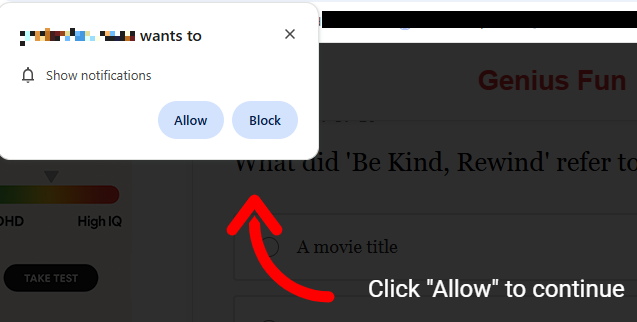
Having tapped, you land on an attacker-controlled site that looks like a regular article page but wastes no time throwing up a browser prompt asking to send you notifications. Many users have been trained by years of pop-ups to click “Allow” just to get it out of the way, especially if the page claims you need to click “Allow” to continue reading or see the offer.
Some pages will falsely claim you have to click Allow to continue reading
Unfortunately, with that single tap, the site now has permission to push messages straight to your Android or desktop, where they sit alongside emails, chats, and real alerts from banks or government apps. Because the notifications don’t behave like traditional pop‑ups and can bypass normal ad‑blocking, many people don’t realize they’ve effectively subscribed to a scam channel.
The result is a stream of alarming notifications that seem to come out of nowhere and have little to do with the original site you visited, so the link between the site and the notifications is usually lost on the victims. Clicking those notifications rarely leads to what they promise. Instead, you’re pushed to another domain in the same network, which may ask for even more permissions, personal data, or try to funnel you into financial scams. Over time, this can expose you to fake investment schemes, fraudulent “tech support” numbers, or pages pushing questionable subscriptions.
All of this costs you time and attention, and sometimes money. At best, you end up with a polluted notification tray full of fake alerts that make it harder to spot something genuinely important. At worst, you follow one scare message too far, hand over personal details or payment information, and become the victim of fraud, identity theft, or aggressive subscription traps. And even if you never click again, your browser is still quietly loading pages and ads you never asked for.
How to stay safe from Pushpaganda
Treat “Allow notifications” prompts as potential traps, especially on sites you’ve never heard of that you reached via a feed or a search result. And even more so if they come with additional, misleading, instructions.
Besides that you should:
Be skeptical of sensational cards in your Discover feed that promise sudden cash, miracle devices, or dramatic political revelations.
Don’t trust buttons that scream “Apply now,” “Claim now,” or “Join WhatsApp” on pages that already feel pushy or poorly written.
Keep your browser, operating system (OS), and other important software up to date.
Use a security app that can block malicious websites and scam pages before they load.
Scammers know more about you than you think.
Malwarebytes Mobile Security protects you from phishing, scam texts, malicious sites, and more. With real-time AI-powered Scam Guard built right in.
Our support team flagged a number of customers who suspected their device might be infected with malware, but Malwarebytes scans came up empty. When the customers provided screenshots, our Malware Removal Support team quickly recognized the format as web push notifications.The reason the scans came up clean is that these notifications aren’t malware on the device. They’re browser notifications from websites that trick users into clicking “Allow.”We helped the customers disable the push notificat
Our support team flagged a number of customers who suspected their device might be infected with malware, but Malwarebytes scans came up empty.
When the customers provided screenshots, our Malware Removal Support team quickly recognized the format as web push notifications.
The reason the scans came up clean is that these notifications aren’t malware on the device. They’re browser notifications from websites that trick users into clicking “Allow.”
We helped the customers disable the push notifications (see below for instructions). But since most of them didn’t know how they got them in the first place, we went down the rabbit hole to find out where they were coming from.
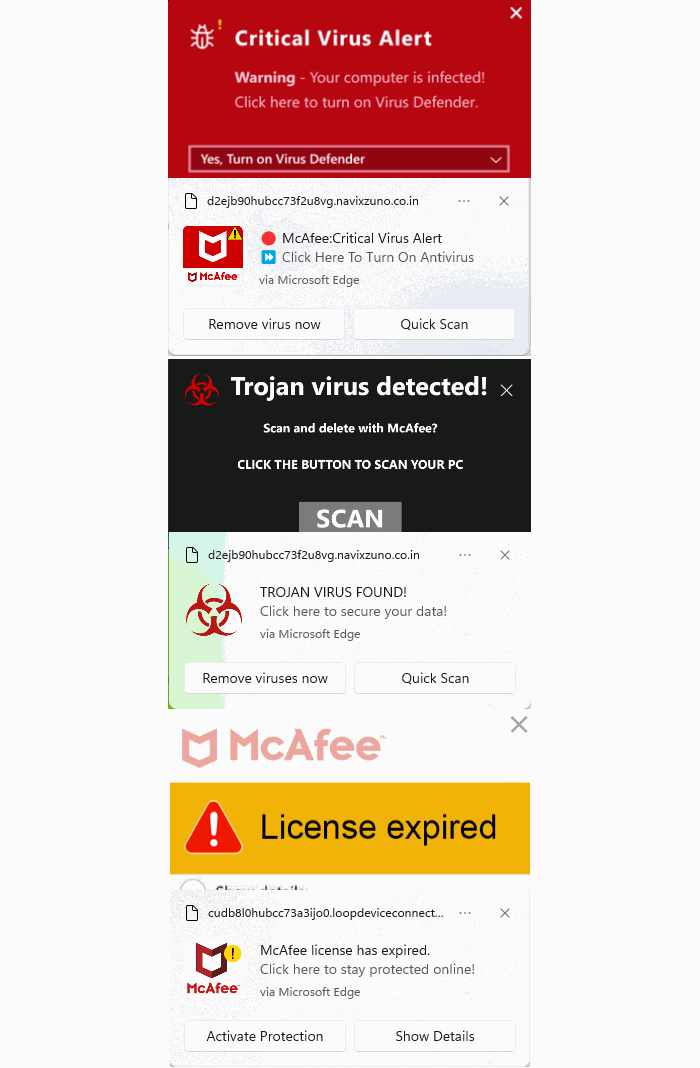
Examples of web push notifications
We started with one of the most prevalent domains called unsphiperidion[.]co.in, but all we found was a misleading advertisement that promised the Adguard browser extension and instead led to Poperblocker.
Fake Adguard browser extension update prompt
But another clue, also mentioned by the Malware Removal Support team—a domain called triviabox[.]co[.]in—practically brought us straight to the source.
We found a site that challenged our intelligence by prompting us to take a quiz.
Quiz website example
Later we found these quizzes come in different flavors. Some about geography, vocabulary, and history, while others are specifically targeted at Canada, Germany, France, Japan, and the US.
But the main goal of these sites is to get you to click the “Start the quiz” button, so the site can send notifications later and make money from ads, affiliate schemes, scams, or unwanted downloads.
Ready to test your knowledge? Start the quiz
What that button does before it starts the quiz is show the visitor a prompt with a misleading background.
Click Allow to continue triggers the browser’s “show notifications” prompt
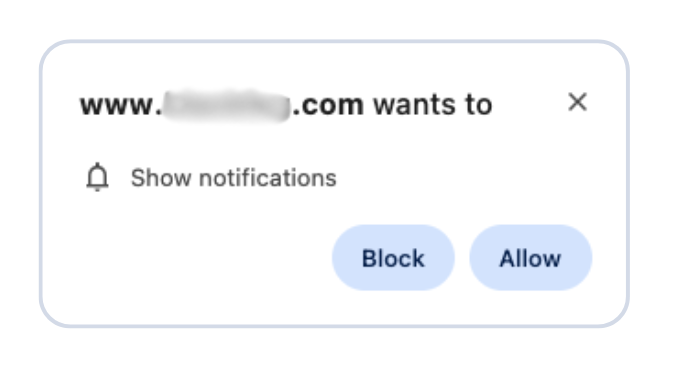
The show notifications text in the actual prompt tells the real story. You’ll be giving the website permission to show you notifications even when you’re not on the website, which makes it hard for users to determine the origin.
The Click “Allow” to continue text with the red arrow on the website itself is nothing more than a well-placed lure to get you to click that Allow button and open the flood gates. To avoid raising suspicion, the visitor is then presented with the quiz, so later on they will have no reason to suspect what started the ordeal.
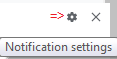
Web push notifications (also called browser push notifications) are not always simple advertisements. Some can be misleading messages about the safety of your computer. The gear icon in the notifications themselves can be very helpful. On Chromium-based browsers, clicking it will lead you to the Notifications settings menu where you can block them.
Unfortunately, we often find them used by “affiliates” to promote security software. If you’re looking for an anti-malware solution that doesn’t make use of such affiliates, you know where to find us.
How to remove and block web push notifications
For every browser, the notifications look slightly different and the methods to disable them are slightly different as well. To make them easier to find, I have split them up by browser.
Chrome
To completely turn off notifications, even from an extension:
Click the three dots button in the upper right-hand corner of the Chrome menu to enter the Settings menu.
In the Settings menu and click on Privacy and Security.
Click on Site settings.
In that menu, select Notifications.
By default, the slider is set to Sites can ask to send notifications, but feel free to move it to Don’t allow sites to send notifications if you wish to block notifications completely.
For more granular control, you can use the Customized behaviors menu to manipulate the individual items.
Customized behaviors section of the Chromium notifications menu
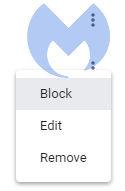
Note that sometimes you may see items with a jigsaw puzzle piece icon in the place of the three stacked dots. These are enforced by an extension, so you would have to figure out which extension is responsible first and then remove it. But for the ones with the three dots behind them, you can click on the dots to open this context menu:
Selecting Block will move the item to the block list. Selecting Remove will delete the item from the list. It will ask permission to show notifications again if you visit their site (unless you have set the slider to Block).
Shortcut: another way to get into the Notifications menu shown earlier is to click on the gear icon in the notifications themselves. This will take you directly to the itemized list.
Firefox
To completely turn off notifications in Firefox:
Click the three horizontal bars in the upper right-hand corner of the menu bar and select Options in the settings menu.
On the left-hand side, select Privacy & Security.
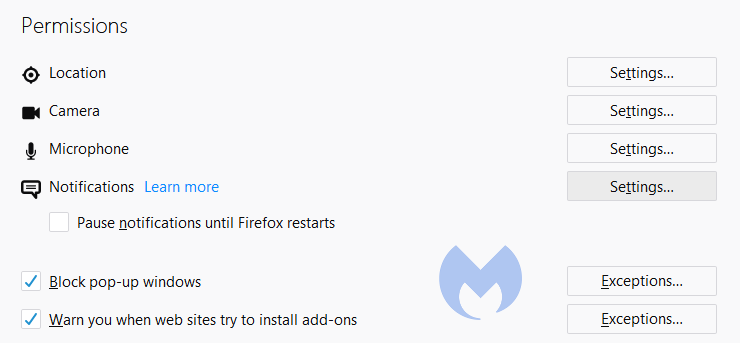
Scroll down to the Permissions section and click on Notifications.
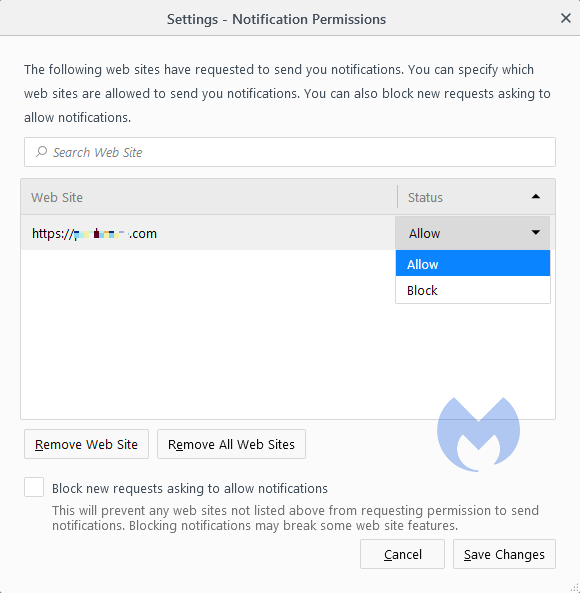
In the resulting menu, put a checkmark in the Block new requests asking to allow notifications box at the bottom.
In the same menu, you can apply a more granular control by setting listed items to Block or Allow by using the drop-down menu behind each item.
Click on Save Changes when you’re done.
Opera
Where push notifications are concerned, you can see how closely related Opera and Chrome are.
Open the menu by clicking the O in the upper left-hand corner.
Click on Settings (on Windows)/Preferences (on Mac).
Click on Advanced and select Privacy & security.
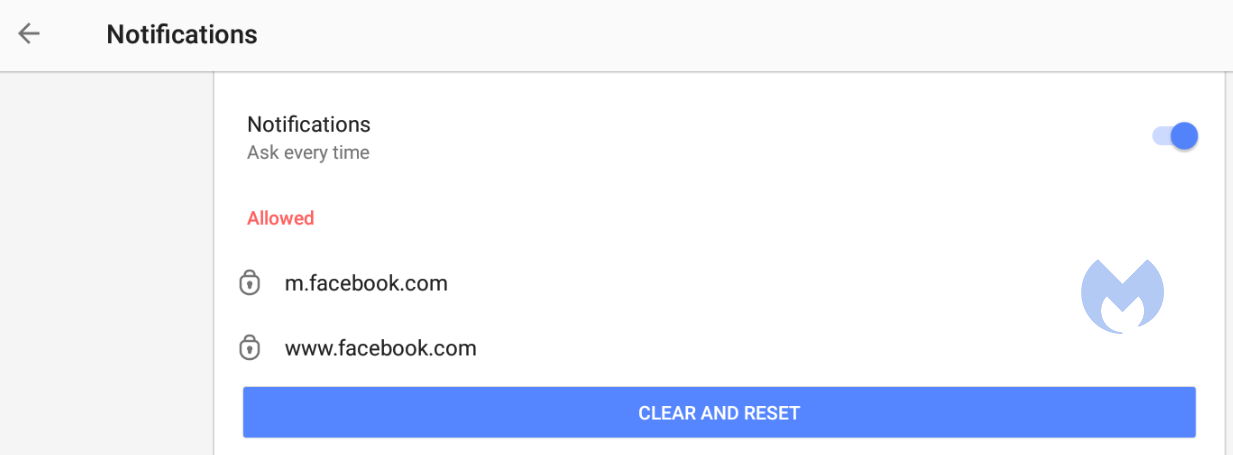
Under Content settings (desktop)/Site settings (Android,) select Notifications.
On Android, you can remove all the items at once or one by one. On desktops, it works exactly the same as it does in Chrome. The same is true for accessing the menu from the notifications themselves. Click the gear icon in the notification, and you will be taken to the Notifications menu.
Edge
In Edge, go to Settings and more in the upper right corner of your browser window, then
Select Settings > Privacy, search, and services > Site permissions > All sites.
Select the website for which you want to block notifications, find the Notifications setting, and choose Block from the dropdown menu.
To manage notifications from your browser address bar:
To check or manage notifications while visiting a website you’ve already subscribed to, follow the steps below:
Select View site information to the left of your address bar.
Under Permissions for this site > Notifications, choose Block from the drop-down menu.
Safari on Mac
On your Mac, open theApple menu, then
Choose System Settings, then click Notifications in the sidebar. (You may need to scroll down.)
Go to Application Notifications, click the website, then turn off Allow Notifications.
The website remains in the list in Notifications settings. To remove it from the list, deny the website permission to send notifications in Safari settings. See Change websites settings.
To stop seeing requests for permission to send you notifications in Safari:
Go to the Safari app on your Mac.
Choose Safari > Settings.
Click Websites, then click Notifications.
Deselect Allow websites to ask for permission to send notifications.
From now on, when you visit a website that wants to send you notifications, you aren’t asked.
Are these notifications useful at all?
While we could conceive of some cases where push notifications might be found useful, we would certainly not hold it against you if you decided to disable them altogether.
Web push notifications are not just there to disturb Windows users. Android, Chromebook, MacOS, even Linux users may see them if they use one of the participating browsers: Chrome, Firefox, Opera, Edge, and Safari. In some cases, the browser does not even have to be opened, and it can still display push notifications.
Be careful out there and think twice before you click “Allow.”
Indicators of Compromise (IOCs)
During the course of the investigation we found—and blocked—these domains related to the campaign:
dailyrumour[.]co.nz
edifaqe[.]org
geniusfun[.]co.in
geniusfun[.]co.za
genisfun[.]co.nz
holicithed[.]com
ivenih[.]org
loopdeviceconnection[.]co.in
mindorbittest[.]com
navixzuno[.]co.in
quizcentral[.]co.in
quizcentral[.]co.za
rixifabed[.]org
triviabox[.]co.in
uhuhedeb[.]org
unsphiperidion[.]co.in
yeqeso[.]org
ylloer[.]org
We don’t just report on threats—we remove them
Cybersecurity risks should never spread beyond a headline. Keep threats off your devices by downloading Malwarebytes today.
Cybercriminals are using browser push notifications to deliver malware and phishing attacks.
Researchers at BlackFog described how a new command-and-control platform, called Matrix Push C2, uses browser push notifications to reach potential victims.
When we warned back in 2019 that browser push notifications were a feature just waiting to be abused, we noted that the Notifications API allows a website or app to send notifications that are displayed outside the page at the system level. Th
Cybercriminals are using browser push notifications to deliver malware and phishing attacks.
Researchers at BlackFog described how a new command-and-control platform, called Matrix Push C2, uses browser push notifications to reach potential victims.
When we warned back in 2019 that browser push notifications were a feature just waiting to be abused, we noted that the Notifications API allows a website or app to send notifications that are displayed outside the page at the system level. This means it lets web apps send information to a user even when they’re idle or running in the background.
Here’s a common example of a browser push notification:
This makes it harder for users to know where the notifications come from. In this case, the responsible app is the browser and users are tricked into allowing them by the usual “notification permission prompt” that you see on almost every other website.
But malicious prompts aren’t always as straightforward as legitimate ones. As we explained in our earlier post, attackers use deceptive designs, like fake video players that claim you must click “Allow” to continue watching.
In reality, clicking “Allow” gives the site permission to send notifications, and often redirects you to more scam pages.
Granting browser push notifications on the wrong website gives attackers the ability to push out fake error messages or security alerts that look frighteningly real. They can make them look as if they came from the operating system (OS) or a trusted software application, including the titles, layout, and icons. There are pre-formatted notifications available for MetaMask, Netflix, Cloudflare, PayPal, TikTok, and more.
Criminals can adjust settings that make their messages appear trustworthy or cause panic. The Command and Control (C2) panel provides the attacker with granular control over how these push notifications appear.
Image courtesy of BlackFog
But that’s not all. According to the researchers, this panel provides the attacker with a high level of monitoring:
“One of the most prominent features of Matrix Push C2 is its active clients panel, which gives the attacker detailed information on each victim in real time. As soon as a browser is enlisted (by accepting the push notification subscription), it reports data back to the C2.”
It allows attackers to see which notifications have been shown and which ones victims have interacted with. Overall, this allows them to see which campaigns work best on which users.
Matrix Push C2 also includes shortcut-link management, with a built-in URL shortening service that attackers can use to create custom links for their campaign, leaving users clueless about the true destination. Until they click.
Ultimately, the end goal is often data theft or monetizing access, for example, by draining cryptocurrency wallets, or stealing personal information.
How to find and remove unwanted notification permissions
A general tip that works across most browsers: If a push notification has a gear icon, clicking it will take you to the browser’s notification settings, where you can block the site that sent it. If that doesn’t work or you need more control, check the browser-specific instructions below.
Chrome
To completely turn off notifications, even from extensions:
Click the three dots button in the upper right-hand corner of the Chrome menu to enter the Settings menu.
Select Privacy and Security.
Click Site settings.
Select Notifications.
By default, the option is set to Sites can ask to send notifications. Change to Don’t allow sites to send notifications if you want to block everything.
For more granular control, use Customized behaviors.
Selecting Remove will delete the item from the list. It will ask permission to show notifications again if you visit their site.
Selecting Block prevents permission prompts entirely, moved them to the block list.
You can also check Block new requests asking to allow notifications at the bottom.
In the same menu, you can also set listed items to Block or Allow by using the drop-down menu behind each item.
Opera
Opera’s settings are very similar to Chrome’s:
Open the menu by clicking the O in the upper left-hand corner.
Go to Settings (on Windows)/Preferences (on Mac).
Click Advanced, then Privacy & security.
Under Content settings (desktop)/Site settings (Android) select Notifications.
On desktop, Opera behaves the same as Chrome. On Android, you can remove items individually or in bulk.
Edge
Edge is basically the same as Chrome as well:
Open Edge and click the three dots (…) in the top-right corner, then select Settings.
In the left-hand menu, click on Privacy, search, and services.
Under Sites permissions > All permissions, click on Notifications.
Turn on Quiet notifications requests to block all new notification requests.
Use Customized behaviors for more granular control.
Safari
To disable web push notifications in Safari, go to Safari > Settings > Websites > Notifications in the menu bar, select the website from the list, and change its setting to Deny. To stop all future requests, uncheck the box that says Allow websites to ask for permission to send notifications in the same window.
For Mac users
Go to Safari > Settings > Websites > Notifications.
Select a site and change its setting to Deny or Remove.
To stop all future prompts, uncheck Allow websites to ask for permission to send notifications.
For iPhone/iPad users
Open Settings.
Tap Notifications.
Scroll to Application Notifications and select Safari.
You’ll see a list of sites with permission.
Toggle any site to off to block its notifications.
We don’t just report on threats—we help safeguard your entire digital identity
Cybersecurity risks should never spread beyond a headline. Protect your, and your family’s, personal information by using identity protection.

 Entrar