How DeForest School District Gained Visibility into Google Workspace and Transformed Their Security Workflow with Cloud Monitor When you’re responsible for keeping an entire school district’s technology running, “good enough” tools quickly become a problem. For Shelly Broberg, Network and Systems Administrator at DeForest School District in Wisconsin, serving about 4,300 students and 650 staff, ...
Google expands Drive ransomware detection and file recovery with its latest AI model, which detects 14 times more infections as the features move beyond beta.
This article was originally published in EdTech Magazine on 02/11/26 by Didi Gluck. As ransomware and phishing attacks grow more sophisticated, districts can’t rely on perimeter defenses alone. Cybersecurity has become a top priority for K–12 districts, not just to keep students safe online but to ensure continuity across devices, systems and end user accounts. ...
Update November 22. We’ve updated this article after realising we contributed to a perfect storm of misunderstanding around a recent change in the wording and placement of Gmail’s smart features. The settings themselves aren’t new, but the way Google recently rewrote and surfaced them led a lot of people (including us) to believe Gmail content might be used to train Google’s AI models, and that users were being opted in automatically. After taking a closer look at Google’s documentation and reviewing other reporting, that doesn’t appear to be the case.
Gmail does scan email content to power its own “smart features,” such as spam filtering, categorisation, and writing suggestions. But this is part of how Gmail normally works and isn’t the same as training Google’s generative AI models. Google also maintains that these feature settings are opt-in rather than opt-out, although users’ experiences seem to vary depending on when and how the new wording appeared.
It’s easy to see where the confusion came from. Google’s updated language around “smart features” is vague, and the term “smart” often implies AI—especially at a time when Gemini is being integrated into other parts of Google’s products. When the new wording started appearing for some users without much explanation, many assumed it signalled a broader shift. It’s also come around the same time as a proposed class-action lawsuit in the state of California, which, according to Bloomberg, alleges that Google gave Gemini AI access to Gmail, Chat, and Meet without proper user consent.
We’ve revised this article to reflect what we can confirm from Google’s documentation, as it’s always been our aim to give readers accurate, helpful guidance.
Google has updated some Gmail settings around how its “smart features” work, which control how Gmail analyses your messages to power built-in functions.
According to reports we’ve seen, Google has started automatically opting users in to allow Gmail to access all private messages and attachments for its smart features. This means your emails are analyzed to improve your experience with Chat, Meet, Drive, Email and Calendar products. However, some users are now reporting that these settings are switched on by default instead of asking for explicit opt-in—although Google’s help page states that users are opted-out for default.
How to check your settings
Opting in or out requires you to change settings in two places, so I’ve tried to make it as easy to follow as possible. Feel free to let me know in the comments if I missed anything.
To fully opt out, you must turn off Gmail’s smart features in two separate locations in your settings. Don’t miss one, or AI training may continue.
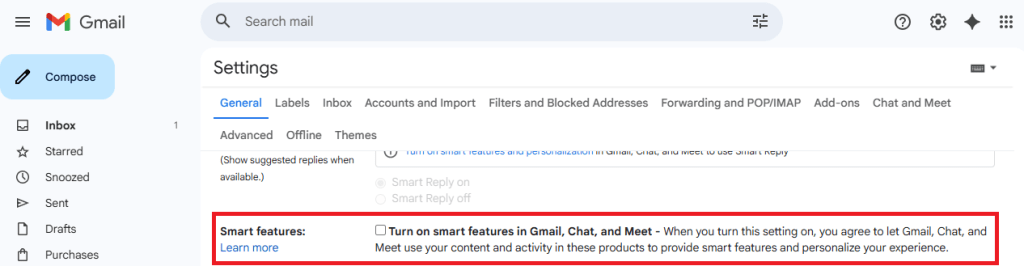
Step 1: Turn off Smart features in Gmail, Chat, and Meet settings
Open Gmail on your desktop or mobile app.
Click the gear icon → See all settings (desktop) or Menu → Settings (mobile).
Find the section called smart features in Gmail, Chat, and Meet. You’ll need to scroll down quite a bit.
Uncheck this option.
Scroll down and hit Save changes if on desktop.
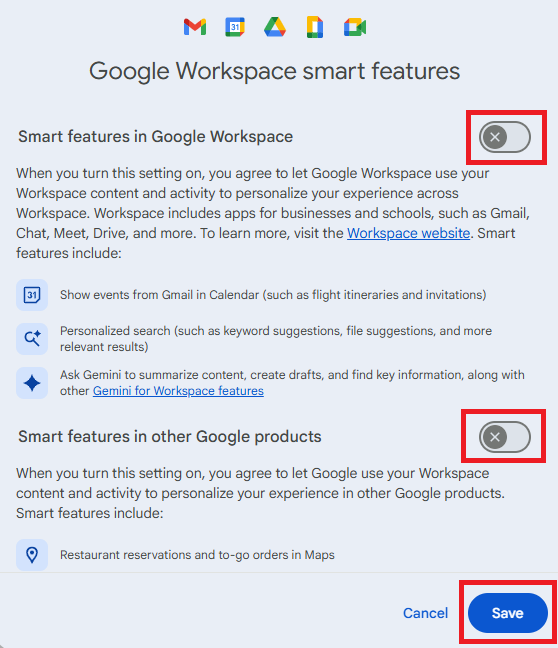
Step 2: Turn off Google Workspace smart features
Still in Settings, locate Google Workspace smart features.
Click on Manage Workspace smart feature settings.
You’ll see two options: Smart features in Google Workspace and Smart features in other Google products.
Toggle both off.
Save again in this screen.
Step 3: Verify if both are off
Make sure both toggles remain off.
Refresh your Gmail app or sign out and back in to confirm changes.
We don’t just report on privacy—we offer you the option to use it.
Privacy risks should never spread beyond a headline. Keep your online privacy yours by using Malwarebytes Privacy VPN.
Lots of startups use Google’s productivity suite, known as Workspace, to handle email, documents, and other back-office matters. Relatedly, lots of business-minded webapps use Google’s OAuth, i.e. “Sign in with Google.” It’s a low-friction feedback loop—up until the startup fails, the domain goes up for sale, and somebody forgot to close down all the Google stuff.
Dylan Ayrey, of Truffle Security Co., suggests in a report that this problem is more serious than anyone, especially Google, is acknowledging. Many startups make the critical mistake of not properly closing their accounts—on both Google and other web-based apps—before letting their domains expire.
Given the number of people working for tech startups (6 million), the failure rate of said startups (90 percent), their usage of Google Workspaces (50 percent, all by Ayrey’s numbers), and the speed at which startups tend to fall apart, there are a lot of Google-auth-connected domains up for sale at any time. That would not be an inherent problem, except that, as Ayrey shows, buying a domain with a still-active Google account can let you re-activate the Google accounts for former employees.

 Entrar