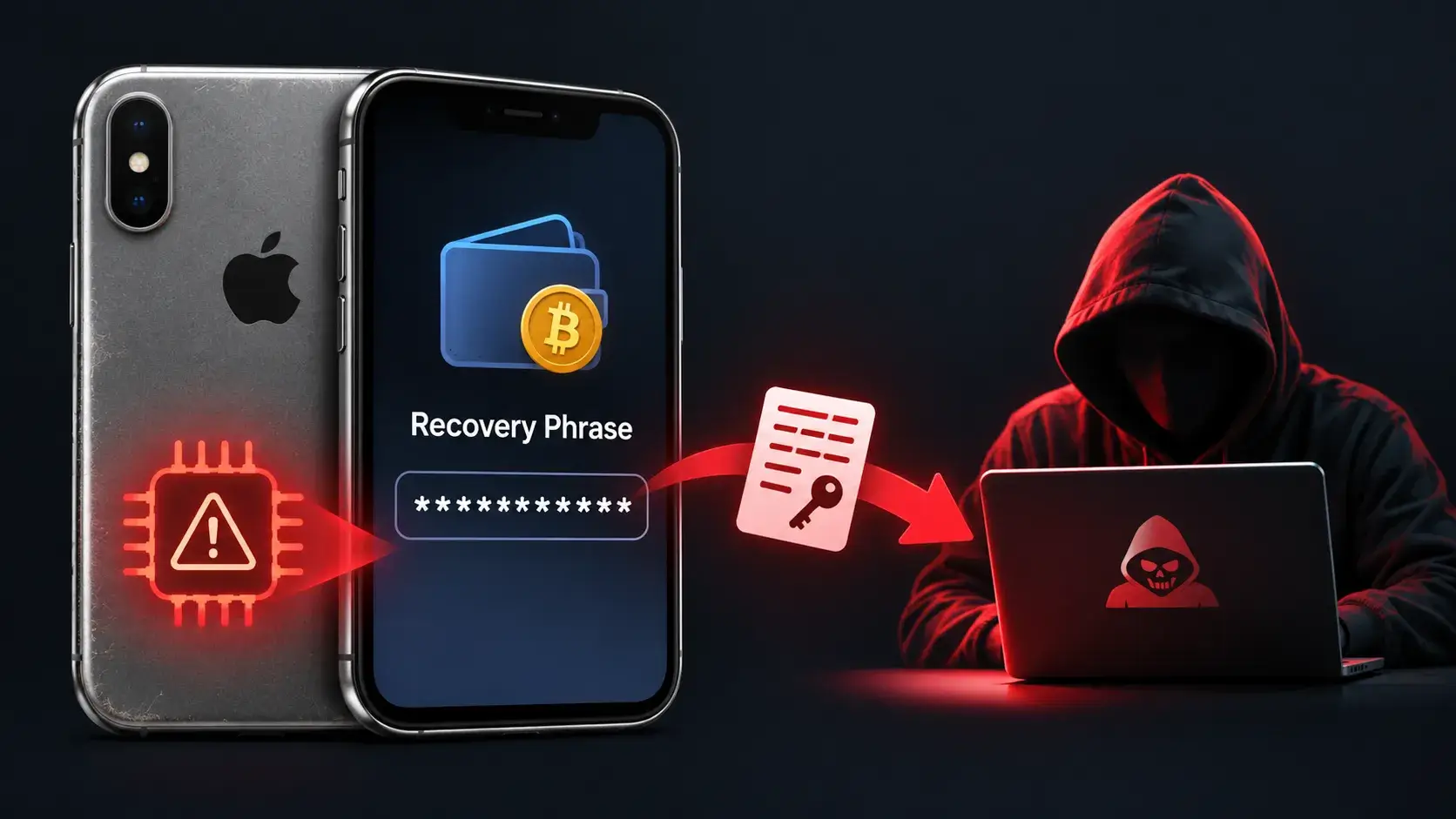
Older iPhones that store cryptocurrency recovery phrases are at a continuous security risk due to unpatchable BootROM vulnerabilities, even if the devices are wiped and kept in airplane mode. While attackers require physical access to exploit this vulnerability, doing so does not automatically reveal encrypted wallet data. However, other weaknesses could potentially allow them to […]
Dutch spies, Russian hackers and Jared Kushner’s iPhone. It sounds like the ingredients for a thriller, but according to claims in a new book the US President's son-in-law may have been hacked twice. Is any of it true, and what does it tell us about the phones in our pockets?
Meanwhile, James Ball explains that of the internet’s most trusted security keys were protected by numbers so small that one of them was... four. Yes, "4". And then, of course, to make the week worse we suffered a PHPocalpyse...
Plus, Chuck Randolph of 360 Privacy explains how the internet has made it scarily easy to put company executives and public officials in danger.
All this and more in episode 490 of the “Smashing Security” podcast with cybersecurity expert and keynote speaker Graham Cluley, and special guest James Ball.
Apple’s latest updates include a fix for a CoreGraphics bug that may have been exploited in targeted attacks. The fix is now available for older iPhones and iPads.
Apple released security updates on October 26. Apple first fixed the flaw in iOS 26.7.1. Its latest updates also bring the fix to older devices that can’t run iOS 26, including the iPhone XS, iPhone XS Max, iPhone XR, and seventh-generation iPad.
The iOS 18.7.11 update is a backport: it brings a fix from a newer software version to an older one. Here, Apple has made the fix available to older devices running iOS 18, so they can be protected without upgrading to an operating system they don’t support.
Updates for your particular device
The table below shows which updates are available and links to Apple’s security information for each one.
iPhone 11 and later, iPad Pro 12.9-inch 4th generation and later, iPad Pro 11-inch 2nd generation and later, iPad Air 4th generation and later, iPad 9th generation and later, and iPad mini 6th generation and later
iPhone 11 and later, iPad Pro 12.9-inch 3rd generation and later, iPad Pro 11-inch 1st generation and later, iPad Air 3rd generation and later, iPad 8th generation and later, and iPad mini 5th generation and later
For iOS and iPadOS users, here’s how to check if you’re using the latest software version:
Go to Settings > General > Software Update. You will see if there are updates available and be guided through installing them.
Turn on Automatic Updates if you haven’t already—you’ll find it on the same screen.
How to update your Mac
To update macOS on any supported Mac, use the Software Update feature, which Apple designed to work consistently across all recent versions. Here are the steps:
Click the Apple menu in the upper-left corner of your screen.
Choose System Settings (or System Preferences on older versions).
Select General in the sidebar, then click Software Update on the right. On older macOS, just look for Software Update directly.
Your Mac will check for updates automatically. If updates are available, click Update Now (or Upgrade Now for major new versions) and follow the on-screen instructions. Before you upgrade to macOS Tahoe 26, please read these instructions.
Enter your administrator password if prompted, then let your Mac finish the update (it might need to restart during this process).
Keep your Mac plugged in and connected to the internet until the update is done.
How to update your Safari browser
Safari updates are included with macOS updates, so installing the latest version of macOS will also update Safari. To check manually:
Open the Apple menu > System Settings > General > Software Update.
If you see a Safari update listed separately, click Update Now to install it.
Restart your device when prompted.
Technical details
The headline bug is CVE-2026-86950, in CoreGraphics, Apple’s framework for drawing graphics, images and PDF content. It’s an out-of-bounds write flaw, where software writes data outside the memory set aside for it. The result is that “processing a maliciously crafted file may lead to arbitrary code execution.”
Apple says it is aware of a report that the flaw may have been exploited in an “extremely sophisticated attack against specific targeted individuals” on versions of iOS before iOS 27.
That wording indicates Apple believes the bug was used in real attacks against a limited group of users.
Usually, journalists, activists and officials are the targets of this kind of attack. If you think you could be a target of highly sophisticated spyware, you should update, restart your phone, and consider applying Apple’s Lockdown Mode.
Scammers know more about you than you think.
Malwarebytes Mobile Security protects you from phishing, scam texts, malicious sites, and more. With real-time AI-powered Scam Guard built right in.
Justin.sh is reporting on a confidential Cellebrite document that has been leaked to him:
Cellebrite calls it Advanced Unlocks (AU from here on), not to be confused with the “advanced unlocking services” they’ve marketed for years. A press release from earlier this year confirms AU is a new product for 2026.
[…]
According to Cellebrite, AU:
is a “next-generation AFU vector that is more resilient to Apple’s OS changes”
works with Stolen Device Protection enabled, which tightens USB restrictions
is enabled by a dedicated appliance with a stated range (!) of about 8 meters.
AU = Advanced Unlocks, Cellebrite’s term. AFU = after first unlock.
404Media is reporting (alternate link) that a cyber-weapons arms manufacturer is exploiting a vulnerability in iOS to bypass its automatic reboot security feature. This is the feature that automatically puts an iPhone into a more secure state if it hasn’t been used for 72 hours.
The new technology to get around inactivity reboot was developed by Magnet Forensics, the company behind GrayKey, a popular tool sold to law enforcement agencies that allows them to unlock and access data stored in iPhones and Android smartphones. Magnet has developed a new device called GrayKey Preserve and a feature for its regular GrayKey devices called Evidence Preservation Mode, according to the video.
“This is an absolute game changer for iOS forensics and a function that I wish we had years ago,” a Magnet employee says in the leaked video, specifically mentioning that the solution is targeted at the iPhone’s inactivity reboot feature and the data it makes unavailable. GrayKey Preserve and Evidence Preservation Mode are also designed to combat another iPhone feature that automatically deletes certain data - such as cached locations, and recently deleted photos and iMessages - after a certain number of days. “We’re gonna be able to preserve that data for an infinite amount of time.”
Presumably, now that Apple engineers know that this flaw exists they can find and fix it. AI turns out to be really good at this sort of thing.
You've had your iPhone stolen. A day later, you get a text from Apple saying they've found it, and a very helpful woman called Alice from Apple Support calls to walk you through recovering it. She's polite. She's professional. But she is not from Apple. She's not even human. And she's about to break into your iPhone.
Meanwhile, OpenAI, Anthropic, and Meta have all announced - with varying degrees of drama - that their AI agents have "broken out of the sandbox" and gone hacking. James takes a step back and asks the awkward question: is this really an emergent AI apocalypse, or did they just leave the door open?
All this and more in episode 483 of the "Smashing Security" podcast with cybersecurity expert and keynote speaker Graham Cluley, and special guest James Ball.
Como Recuperar Conversas de Mensagens Apagadas no iPhone
Guia prático baseado nos procedimentos oficiais da Apple para recuperar mensagens de texto e conversas excluídas, com e sem backup.
Apagou uma conversa por engano? Antes de entrar em pânico, existe uma janela de recuperação real — mas ela é limitada pelo tempo e pela forma como o seu iPhone sincroniza os dados. Este tutorial mostra o caminho oficial, na ordem certa.
Nota metodológica
Este conteúdo é uma adaptação e resumo em texto do procedimento oficial de suporte da Apple, não uma transcrição literal do vídeo referenciado — por respeito a direitos autorais, o material do vídeo não é reproduzido aqui.
Passo a passo de recuperação
Verifique a pasta "Mensagens Apagadas Recentemente"
A partir do iOS 16, o iPhone guarda as conversas excluídas por até 30 dias antes de apagá-las de vez. Abra o app Mensagens, toque em Editar (ou no ícone de filtros) no canto superior esquerdo e escolha Mostrar Apagadas Recentemente. Selecione a conversa e toque em Recuperar.
Ative o Modo Avião assim que perceber a perda
Desativar a internet imediatamente evita que o aparelho sincronize e sobrescreva dados que ainda possam estar recuperáveis, localmente ou via iCloud.
Confira se o Mensagens no iCloud está ativado
Vá em Ajustes > [seu nome] > iCloud > Ver Tudo > Mensagens. Se estiver ativo, as conversas sincronizam entre dispositivos em vez de ficarem apenas no backup tradicional. Verifique se algum outro aparelho ainda não sincronizou a exclusão.
Restaure a partir de um backup do iCloud
Se a mensagem já passou dos 30 dias, vá em Ajustes > Geral > Transferir ou Redefinir iPhone > Apagar Todo o Conteúdo e Ajustes. Na configuração inicial, escolha Restaurar do Backup do iCloud e selecione um backup anterior à exclusão.
Restaure a partir de um backup local (Finder/iTunes)
Conecte o iPhone ao computador, selecione o dispositivo e escolha Restaurar Backup, apontando para uma cópia feita antes da perda das mensagens.
Avalie ferramentas de recuperação de dados especializadas
Quando não há backup nem cópia na pasta de apagadas, softwares forenses de recuperação podem vasculhar o armazenamento do aparelho em busca de vestígios não sobrescritos. O sucesso não é garantido.
Atenção crítica
Restaurar um backup — do iCloud ou do computador — substitui os dados atuais do iPhone pelos dados daquele backup. Fotos, mensagens e configurações mais recentes que não estavam salvas na cópia serão perdidas. Avalie o custo-benefício antes de prosseguir.
Boa prática de blindagem digital
Mensagens envolvendo evidências, negociações ou conteúdo sensível devem ser preservadas com métodos formais de cadeia de custódia — capturas de tela isoladas não têm valor probatório robusto. Se o contexto envolver disputa, ameaça ou exposição indevida, a preservação técnica correta faz diferença no resultado.
RDS — Inteligência Digital & Investigação · @RDSWEB

 Entrar